
Voices
A voice sets how an article sounds, for example how formal it is and how long the sentences are. Unspar has 14 built-in voices, and you can make your own from your writing.
All docs pages
A voice is a short writing profile that Unspar follows when it writes. It controls how direct and formal the text is, how long the sentences run, and how the headings sound. It also sets whether the writer uses “I”.
You don’t have to use a voice. Without one, an article follows the style of its template. The template decides what kind of text you get, like a guide, while the voice decides how it sounds. A voice is useful when your site already has a recognizable style, or when a single article needs a different tone.
Pick a built-in voice
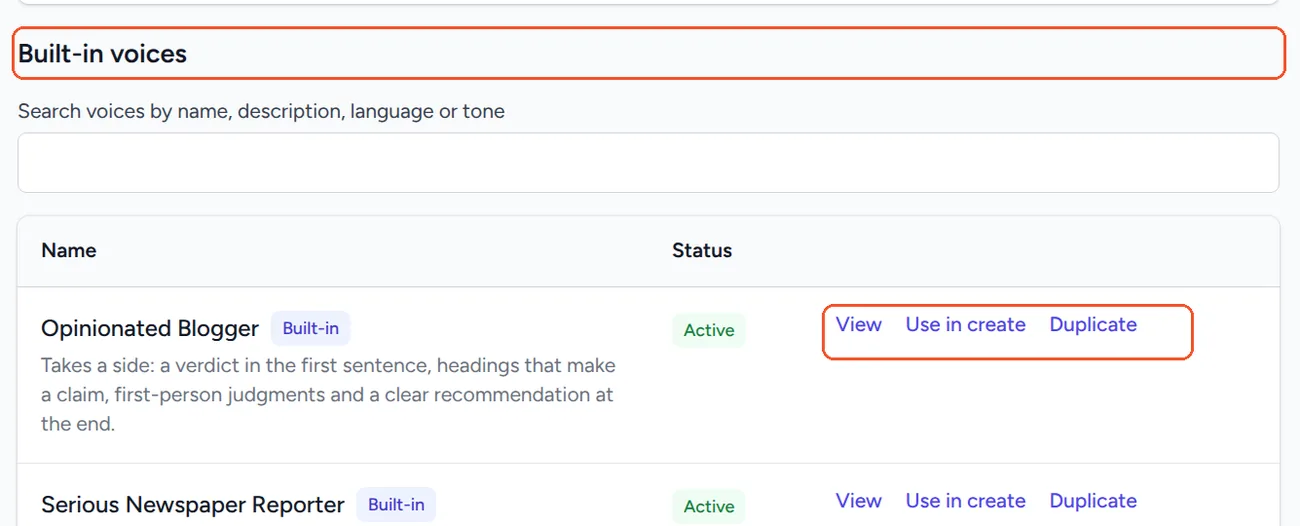
Unspar includes 14 built-in voices. Open Voices and look under Built-in voices. Select View to read a sample in that voice, or Use in create to open the Create page with that voice already selected.
| Voice | How it sounds | Made for |
|---|---|---|
| Friendly Explainer | Plain help for beginners that talks to the reader. | Any language |
| Science Professor | A lecture that defines each term. | Any language |
| Technical Documentation Writer | Documentation with numbered steps and warnings. | Any language |
| Serious Newspaper Reporter | A news report without advice. | Any language |
| Investigative Journalist | Evidence first, with what is documented and what is unclear. | Any language |
| Opinionated Blogger | Takes a side, in the first person. | Any language |
| Startup Founder | A memo with the decision first. | Any language |
| LinkedIn Thought Leader | A short personal essay with one-sentence paragraphs. | Any language |
| Sachlicher Ratgeber | Sober practical advice with a concrete next step. | German |
| Feuilleton | Reflective commentary on culture. | German |
| Freundlicher Du-Blog | Friendly everyday help with the informal “du”. | German |
| Service Magazine | Advice with a quick verdict. | English |
| Narrative Feature | A story that starts with a concrete detail. | English |
| Concise Business Briefing | A compact brief for a decision. | English |
A voice made for German or English also works in other languages. You can’t edit a built-in voice, but Duplicate gives you a copy you can change.
Make a voice from your website
The Your site voice card on your project page builds a voice from articles already on the project’s website. Those articles need at least 2,000 words combined.
- Open the project from Projects.
- On the Your site voice card, choose Find site articles (free). Unspar reads up to 8 articles and shows how many words it found.
- Choose Create your site voice (free). You can leave the page while it runs.
- Read the sample under Preview on fictional example facts.
- Choose Use as project default. The voice becomes active, and the card says “This voice is your project default.”
The first voice your team makes from a project website is free. Each one after that costs 5 credits, which is the currency you pay with in Unspar. Make sure to create the voice within 60 minutes of finding the articles, or you’ll need to find them again.
Make a voice from writing samples
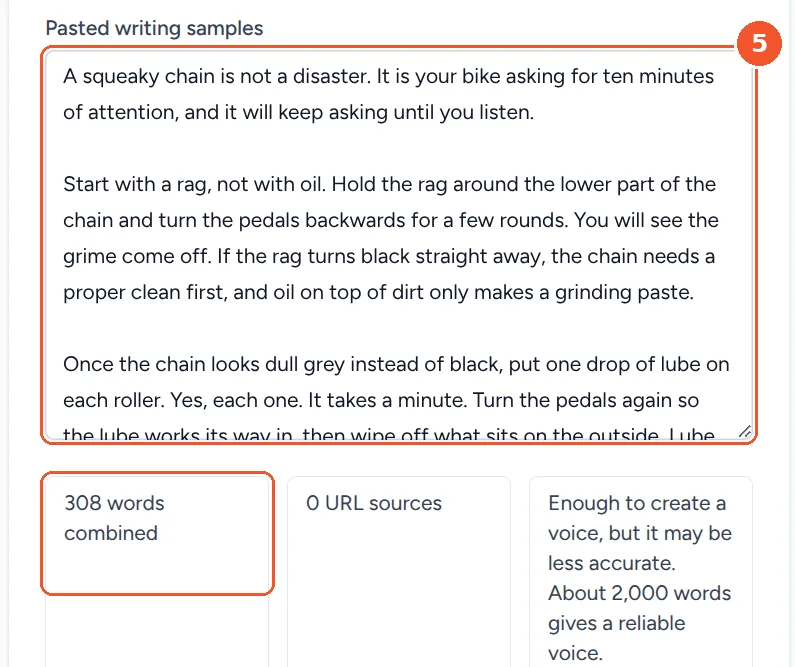
Use this option for texts that aren’t on the project’s website. You need at least 300 words, though about 2,000 words give a more reliable result. Only use texts you have permission to use.
- Open Voices and choose New voice.
- Under URLs or domains, enter the addresses of your texts, one per line.
- Choose Find writing samples. The articles appear under Discovered sources.
- Choose Remove source next to any article that doesn’t sound like you, for example a guest post.
- Paste texts that aren’t online into Pasted writing samples.
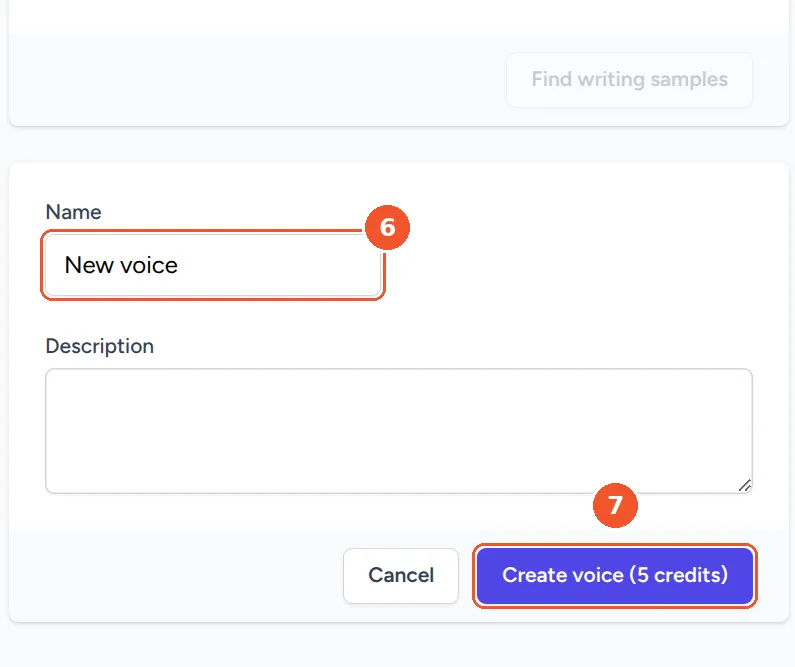
- Check the Name and Description under Suggested identity.
- Choose Create voice (5 credits). When Unspar is done, the new voice opens as a draft.
- Read the Prompt-ready brief, which is the instruction Unspar writes with. Fix anything wrong and choose Save.
- Choose Activate. Only active voices can be used in articles.
Unspar only charges the 5 credits if the voice is created. It won’t create voices that imitate a known writer or publication.
Write a voice by hand
On the Manual tab of New voice, you can fill in the voice yourself. Give it a Name and choose the settings under Voice profile, like Directness and Formality. The Prompt-ready brief and Preservation brief are required. Creating a voice this way is free. It saves as a draft, so choose Activate when it’s ready.
Use a voice for a project or one article
A project voice applies to every new article in that project.
- Open the project from Projects.
- Open More actions (⋮) and choose Edit.
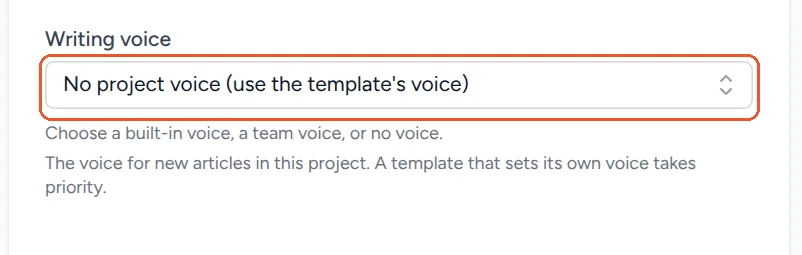
- Pick the voice under Writing voice.
- Choose Save.
To remove the project voice, pick No project voice (use the template’s voice).
To set a voice for a single article, open the Manual tab on the Create page and pick a voice under Writing voice in the Structure group. The Assistant tab only shows the voice in the Recommended template panel. Using a voice costs nothing extra.
How do the template and the voice work together?
The template sets the research, the structure, and the sections the article needs. The voice replaces the template’s general style rules. It shapes headings and paragraphs, without changing facts, required sections, citations, or links. Any instructions you write for a single article still take priority over the voice.
The tested built-in templates have no voice of their own, so an article has no voice unless you choose one. When more than one voice applies, the article’s own choice wins, followed by a voice saved in the template, and then the project’s voice. Once an article starts, it keeps that version of the voice.
Change or archive a voice
Your own voices live under Team voices on the Voices page. After you edit and save one, new articles use the updated version.
Archive removes a voice from the lists. You can’t reactivate it, and you can’t delete voices. A project that still points to an archived voice will write without one, so pick a new voice first.
Only Owners, Administrators, and Managers can create voices. See Teams.
For AI agents
Agents can list the voices and set a project's default voice. For one article, they pick a voice with --voice. Without --voice, the article uses the template's or the project's voice. Making a voice from writing samples costs 5 credits and works in the web app and through the API.
unspar voices list
unspar voices show voice:builtin:friendly_explainer
unspar projects update <project-id> --default-voice voice:builtin:friendly_explainer
unspar projects update <project-id> --default-voice ""
unspar articles create --project <project-id> --brief "How to choose a password manager" --voice voice:builtin:friendly_explainer
unspar api get /voices/manage --query status=draft
unspar api post /voices/<voice-id>/activate
unspar <command> --help lists each command's flags and output options. Install and login: the CLI docs.
Last updated 25 November 2026. This page as Markdown: voices.md
Try Unspar for free
Create a project, give it a topic and read the article before anything goes live.