
Translate an article
Unspar can translate an article you already have into another language. The translation keeps the headings and the structure of the original.
All docs pages
Unspar can translate an article you already have into another language. You can pull the original from any public web page or paste the text directly. The translation keeps the original headings and structure, so both versions match section by section.
A translation doesn’t do new research. It sticks to what the original says. If readers in another country need different content, such as local rules or prices, create a new article in that language instead.
Unspar translates into 14 language variants across four languages:
- English: US, UK, Australia and Canada
- German: Germany, Austria and Switzerland
- Spanish: Spain, Mexico and Argentina
- French: France, Canada, Belgium and Switzerland
Which translation template fits?
When you start a translation on the Create page, you pick a translation template. A template is a preset that controls the kind of text Unspar writes. For translations, it sets how closely Unspar sticks to the original wording.
| Template | What it does | Good for |
|---|---|---|
| Literal translation | Stays as close to the original wording as it can. | Step-by-step instructions |
| Natural translation | Translates faithfully and reads like a native speaker wrote it. | Most articles |
| Localized translation | Like Natural, plus it adapts idioms and examples for the new readers. Paragraphs within a section may change. | Texts with idioms that only work in the original country |
| Formal business translation | Like Natural, using the formal “you” (like Sie in German). | Business readers |
| Informal translation | Like Natural, using the informal “you” (like du in German). | Casual blogs and shops |
Localized translation adapts the phrasing while keeping the facts untouched. A price in dollars stays in dollars.
All five templates are marked Experimental in the app, which means they haven’t gone through the same review as the templates for new articles.
Translate an article
- Open Create and switch to the Manual tab.
- Under Basics, check that Project shows the right website.
- Set Creation mode to Translate existing content.
- Under Template, pick one of the five translation templates.
- Under Source content, choose URL and enter the address of the original.
- Choose Extract source. Unspar loads the page and pulls out the article text.
- Set Target language, for example German (Germany).
- If a term needs a fixed translation, add it to Article brief. For example: “Keep the product name in English. Translate invoice as Rechnung.”
- Check the price under Estimated credits.
- Choose Queue article.
Unspar opens the new article’s page and starts translating. The article page explains what you’ll see there.
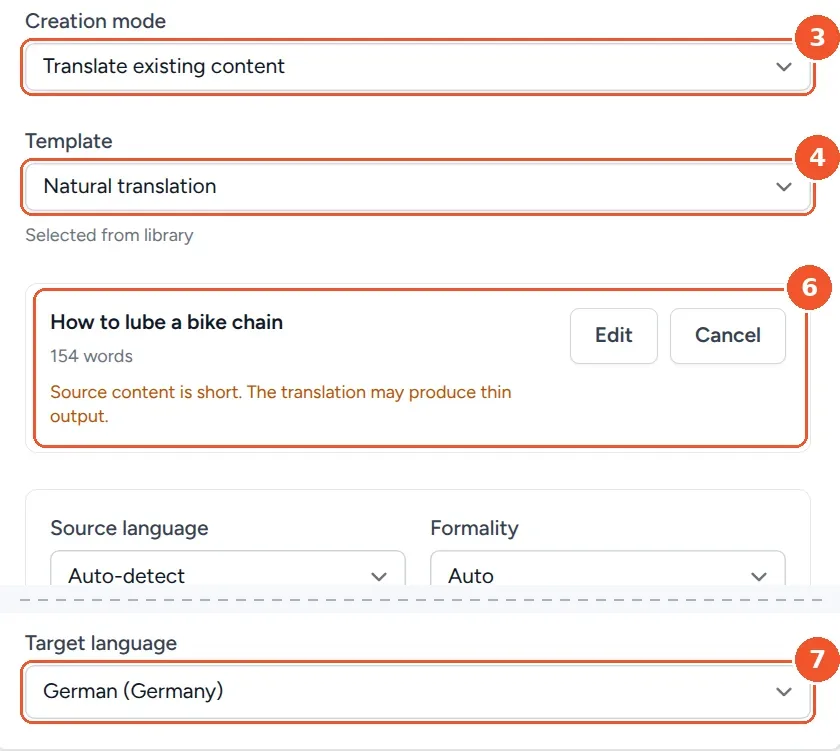
If Unspar can’t load the page, or if the page sits behind a login, copy the article text from your browser. Then choose Paste, fill in Source title and Source content, and choose Use source. URL only works with web pages, so paste the text if your original is a PDF or a Word file.
To translate an article that’s already in Unspar, open it, copy the text from its Markdown tab, and paste it. You can’t pick an existing article from a list.
The original must be at least 120 words or 800 characters, and no more than 20,000 words.
What does a translation cost?
Translating a standard article costs 1 credit. Longer originals cost more:
| Original | Size | Credits |
|---|---|---|
| Under 3,500 words | Article | 1 |
| From 3,500 words | In-depth | 4 |
| From 9,000 words | Report | 15 |
| From 15,000 words | Project | On request |
Unspar also counts the overall size of the text, so an original packed with links or tables can reach the next size tier sooner. Estimated credits shows the size before you queue. Unspar holds the credits when the translation starts and charges them once it finishes. If the translation fails, you get them back. See Credits and prices.
What do you get?
A translation is saved as a new article in the same project, written in the target language. The original stays untouched. If you leave Title or topic empty, Unspar translates the original title.
With four of the five templates, the translation mirrors the original block for block, down to the number of paragraphs. These elements stay in the same places:
- headings
- lists and tables
- quotes and code blocks
- links and images
Localized translation keeps the headings but may reshape paragraphs within a section.
Links still point to the same addresses, so a link to an English page will still go to that English page after translation. If you have a translated version of that page, update the link on your site after you publish.
Translations don’t get new images. Unspar also skips adding links to your other articles, and the optional fact-check doesn’t run on them.
Before you publish, have someone who knows the language well read through the draft. If anything looks off, choose Request changes on the article page. The first round of changes is free.
How is a translation published?
You publish a finished translation the same way you publish any other article. Choose Publish on its page and pick an outlet (a site you connected to Unspar, such as your WordPress site). The translation goes live as a new post and leaves the original in place. See Outlets and publishing, and for a site in several languages, Multilingual sites.
Translate many articles at once
To translate several articles at once, or one article into several languages, use a batch. Each row pairs one original with one target language, and a batch can hold up to 1,000 rows.
- Open Create and switch to the Batch tab.
- Choose Translate source articles. The Batch translate articles page opens.
- Under Batch defaults, pick the Project and the Target language.
- Under Translation template or preset, pick a template.
- In the first row, add an original using Paste or URL.
- Choose Add row for each additional original.
- Tick Ready on each row you want to translate.
- Choose Preview. Each row now shows its price.
- Choose Save and queue.
Any row without its own Target language uses the one from the batch defaults. To translate a single article into several languages, add it on multiple rows and set a different Target language for each.
If your originals are public web pages, you can also choose Upload CSV and upload a file with their addresses and target languages:
source_url,language
https://www.example.com/blog/chain-care,fr-CH
https://www.example.com/blog/brake-pads,fr-CH
Each translation costs the same as one you start on its own. If you don’t have enough credits to cover the whole batch, Unspar saves the rows as drafts and doesn’t start any of them.
For AI agents
A translation only starts in the web app. The API, the CLI and the MCP server can't start one. An agent can save the current text of an Unspar article, which you then paste as the source of the translation. --with-images saves the text with the changes from earlier rounds of changes. The agent can also create a new article on the same topic in the other language.
unspar articles content <article-id> --with-images --output reminder-article-en.md
unspar articles create --project <project-id> --brief "How to send a reminder for an unpaid invoice" --language de-DE
unspar <command> --help lists each command's flags and output options. Install and login: the CLI docs.
Last updated 25 November 2026. This page as Markdown: translations.md
Try Unspar for free
Create a project, give it a topic and read the article before anything goes live.