
Research, sources and citations
Before Unspar writes an article, it looks up the topic. You can add your own sources, choose whether the article links to them, and have Unspar check the facts of the finished article.
All docs pages
Before Unspar writes an article, it gathers material on the topic. This step is called research. How much research runs depends on the template (the setup for one kind of text), and you can adjust it for a single article.
You can also give Unspar your own material and choose whether readers see links to those sources. If you want an extra layer of review, an optional fact-check goes over the finished article once more.
How does Unspar research a topic?
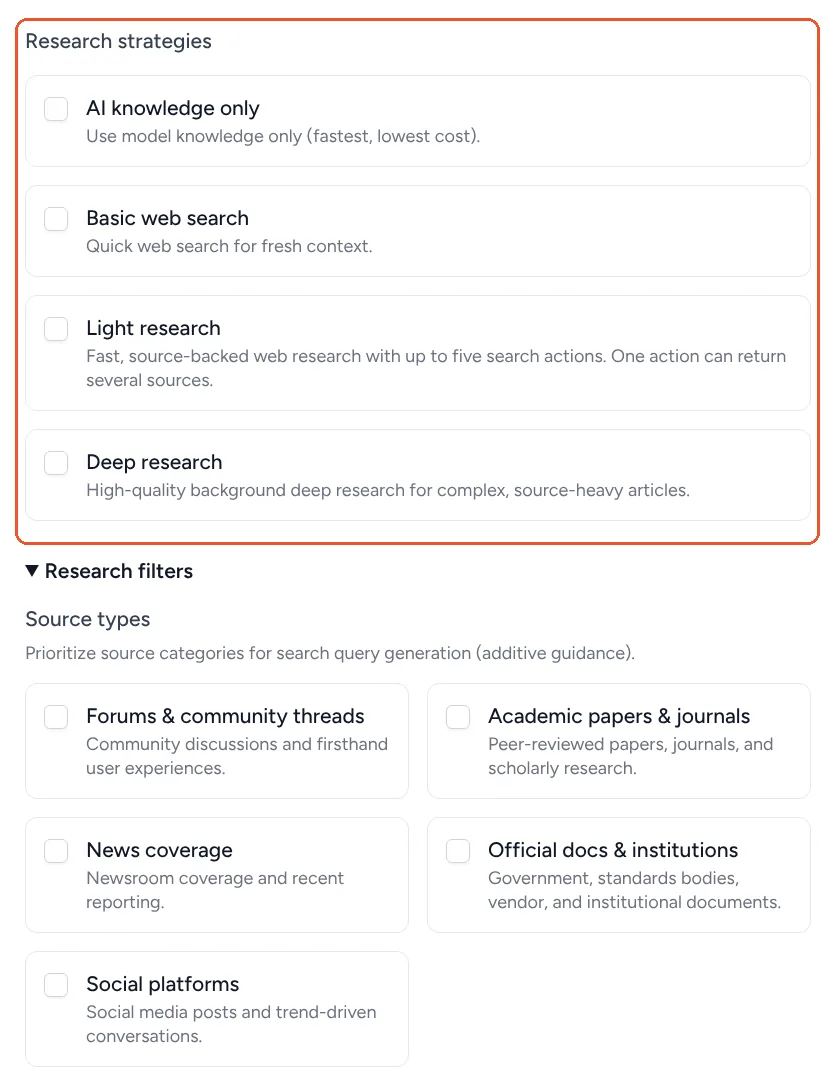
Each template comes with one kind of research. General Guide, the default for new projects, uses Light research. Credits are how you pay in Unspar, and the prices below are for a standard article.
| Research | What Unspar does | Credits |
|---|---|---|
| AI knowledge only | It doesn’t search the web and writes from what the model knows. | 1 |
| Basic web search | One web search. It uses the list of results without opening the pages. | 1 |
| Light research | Up to five web searches. It reads the pages it finds. | 1 |
| Custom source search | Up to eight searches, reading up to twelve pages. Only templates use it. | 1 |
| Deep research | A stronger model with up to ten searches. It takes longer. | 4, or 15 for 3,000 words or more |
Unspar searches in the article’s language and prefers sources from that country. The readers and region in your project’s site context also guide the search.
Change the research for one article
Change the research when an article needs more depth or newer sources than its template provides.
- Open Create and switch to the Manual tab.
- In the Research group, tick what the article should use under Research strategies. Light research and Deep research can’t be combined, so ticking one unticks the other.
- If you want, open Research filters. Under Source types, you can pick something like Official docs & institutions. Under Recency, you can pick something like Past year.
- Check the price under Estimated credits.
The change applies to this article only. The template stays as it is.
Add your own sources
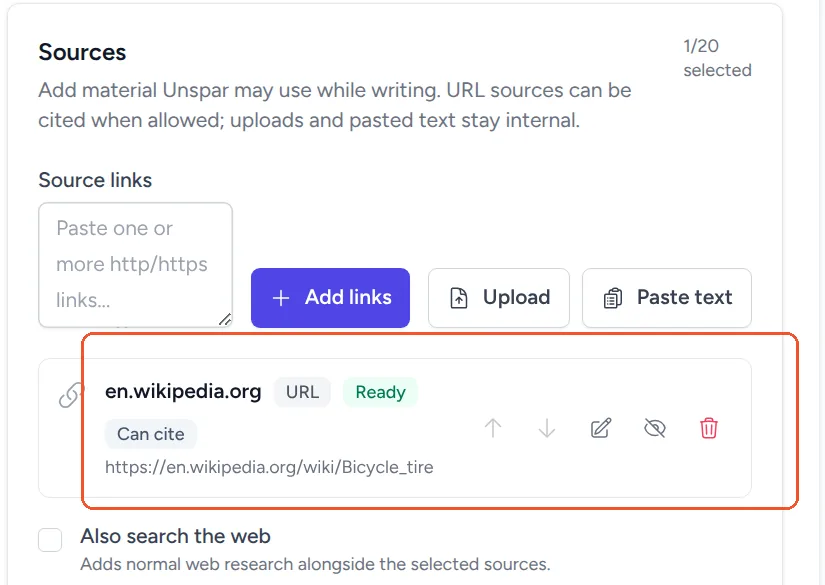
Sources are material you give Unspar for one article, like a page you trust or a document that isn’t online. You add them in the Sources card on the Create page, either under the brief on the Assistant tab or in the Research group of the Manual tab.
- A web page: paste one or more addresses under Source links and choose Add links.
- A file: choose Upload and pick the file.
- Text: choose Paste text, give it a Label, paste the Content and choose Add text.
You can queue the article once every source shows Ready. If a source shows Could not process, take it out with Remove.
A web page starts as Can cite, which means the article may link to it. Uploads and pasted text are always Internal only, so Unspar reads them without ever linking to them. To keep a web page internal, choose the eye icon next to it.
Tick Also search the web to add a quick web search alongside your sources. The template’s own research runs either way.
An article can have up to 20 sources. Files can be PDF, DOCX, TXT, Markdown, HTML or CSV, up to 20 MB each. Each source needs between 120 and 20,000 words. Scanned PDFs don’t work because their pages are pictures without text.
Sources raise the price. With 3 or more links, or any uploaded file, the article costs at least 4 credits. With 8 or more links, or 4 or more files, it costs 15. See Credits and prices.
If Unspar can’t read a link, the article stops. Check that the page opens without a login, then choose Edit in the article’s ⋯ menu, fix the source and queue it again.
How do sources show up in the article?
A citation is a link from a sentence to the page that backs it up. The template sets how citations look. For a single article, change Citation mode in the Structure group of the Manual tab.
| Citation mode | What readers see |
|---|---|
| No citations | No links to sources. General Guide uses this. |
| Inline links | A few words in the sentence link to the source. |
| Reference list | Small numbers after the claims and a References section at the end. |
Unspar only links a source when it backs up the claim in that sentence. Citations don’t cost anything extra.
Every article also gets a basic check while it’s written. If the research doesn’t back a number, Unspar fixes it or removes the sentence. Links to pages outside the research are removed.
Check the facts
The fact-check is an extra step for new articles. After the article is finished, Unspar checks the claims it can verify, like prices, dates or rules, against its research and the web. It corrects a clear mistake when it finds the right value at the original source, and lists doubtful claims for you.
- On the Create page, tick Check the facts. On the Assistant tab, it’s above Estimated credits. On the Manual tab, it’s in the Fact-check group.
- Queue the article as usual.
Estimated credits shows the extra credits for the check. They depend on the article’s size.
| Size of the article | Article | Fact-check |
|---|---|---|
| Short text or Article | 1 | +1 |
| In-depth | 4 | +3 |
| Report | 15 | +6 |
You only pay for the check if it completes. You can’t add it to an article that’s already finished, and refreshes and translations don’t support it.
Read the fact-check report
When the article is finished, the Fact-check card appears below the text. Its first line is the status, and only Check completed is charged. A summary counts the claims checked and confirmed.
- Corrections made shows the old and the new text, along with the website the correction came from.
- Check these lists doubtful claims it didn’t change. Look at the source it shows and decide what to do.
- Corrections not applied lists changes it suggested but didn’t make, each with a reason.
To have Unspar fix the claims under Check these, choose Ask for a fix. Request changes opens with those claims filled in. The article page explains what a round of changes costs.
For AI agents
The template sets the research, so an agent normally doesn't change it. The estimate shows the price. Your own sources can only be added in the web app. If an article fails, read why before you retry, because a retry doesn't fix a source that can't be read. For the fact-check, add --fact-check to create. To price it first, send the estimate a JSON body, so that fact_check arrives as true and not as text. unspar articles show prints the report when the article is finished. A round of changes doesn't see the report, so copy the claims from check_these into the feedback, with what the check found.
unspar templates show template:builtin:general_guide --jq .configuration
unspar api post /articles/estimate --field project=<project-id> --field "brief=What freelancers can deduct for a home office"
unspar articles create --project <project-id> --brief "What freelancers can deduct for a home office" --wait
unspar articles show <article-id>
unspar articles content <article-id> --output article.md
unspar api post /articles/estimate --body '{"project":"<project-id>","brief":"Business license fees for freelancers","fact_check":true}'
unspar articles create --project <project-id> --brief "Business license fees for freelancers" --fact-check --wait
unspar articles show <article-id> --jq .fact_check.check_these
unspar articles revise <article-id> --feedback-file fixes.txt
unspar <command> --help lists each command's flags and output options. Install and login: the CLI docs.
Last updated 25 November 2026. This page as Markdown: research-sources-and-citations.md
Try Unspar for free
Create a project, give it a topic and read the article before anything goes live.