
Scheduling and auto-publish
You can pick the time when an article goes out. A project can also publish its finished articles by itself, on a schedule and with or without your approval.
All docs pages
Publishing sends a finished article to an outlet, such as your WordPress site. See Outlets and publishing to connect one. You don’t have to publish an article the moment it’s done. You can schedule a single article for later, or let a project publish its articles automatically.
All times on this page use the project’s timezone. In Unspar, a project represents one website, and you set its timezone on the project’s Edit page. Scheduling and automatic publishing don’t cost any credits.
Publish one article at a set time
Use this when an article is ready, but you want it to go out on a specific day.
- Open the article from Articles and choose Publish.
- Pick the Outlet.
- Under Publish timing, pick Tomorrow morning, 08:00, Next Monday morning, 08:00, or Custom date and time. For a custom time, set it under Publish no earlier than.
- Choose Schedule publish.
You’ll see the message “Publishing was scheduled for later.” The article waits in Unspar, and its card shows “Waiting for publish time”. When the time comes, Unspar sends it to the outlet within about a minute. The dialog also shows the timezone it uses, such as “Using project timezone: Europe/Vienna.” If you pick a time in the past, the article publishes right away.
You can’t cancel a scheduled publish, and you can’t move it earlier. You can move it later by opening Publish again and picking a new time. The message will say the article is already scheduled, but Unspar will wait for the new time.
Let a project publish by itself
If a project writes articles regularly, such as with Project Auto, you probably don’t want to schedule each one by hand. Instead, the project can publish every finished article to its default outlet. You can only change these settings on the project’s Edit page. New projects always start with auto-publish turned off.
- Open Projects and choose Edit in the project’s menu.
- In the Publishing automation card, pick the Default outlet.
- Switch on Auto-publish completed articles.
- Leave Require human review before auto-publish on if you want someone to approve each article first. It’s on by default.
- Open Publishing schedule and choose when articles go out.
- Choose Save.
From then on, each new article that finishes in this project goes out on that schedule. Articles that were already finished before you turned this on won’t go out by themselves, so publish those by hand.
If auto-publish is on without a Default outlet, the form warns you. In that case, only articles that have their own outlet set will publish by themselves.
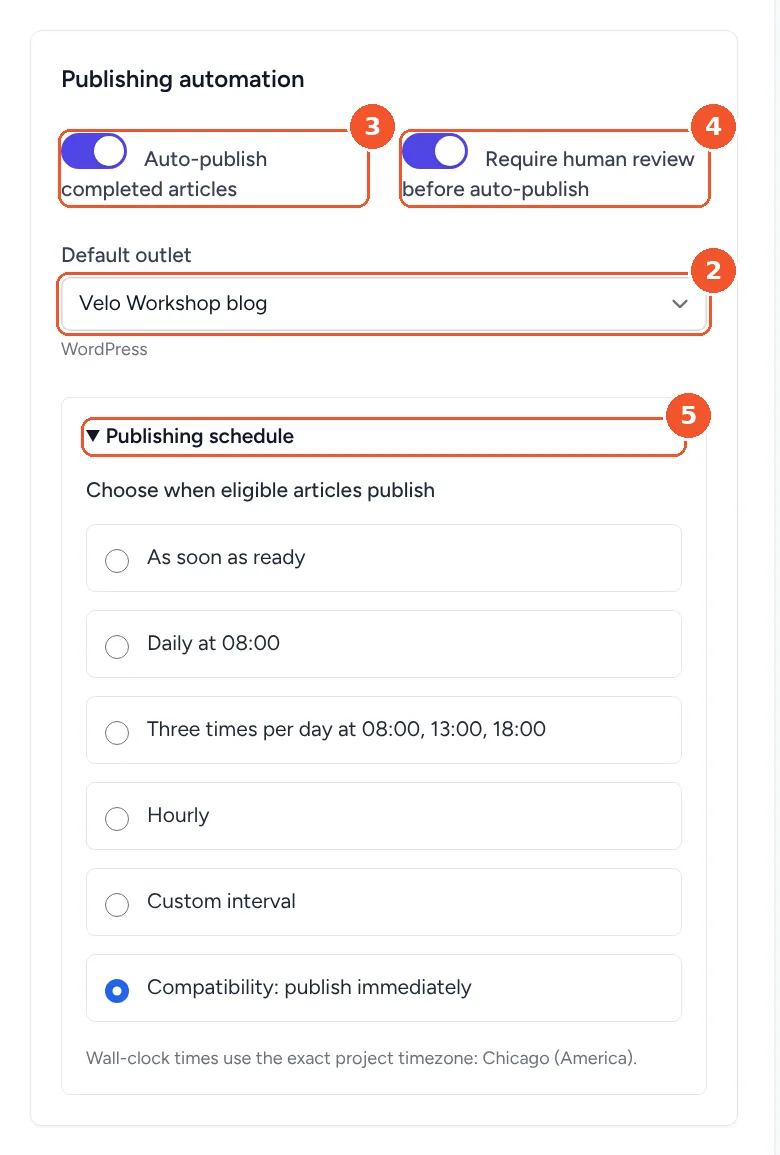
When do the articles go out?
The Publishing schedule controls how the project spaces out its articles.
| Option | What happens |
|---|---|
| As soon as ready | Each article goes out as soon as it’s ready. New projects start with this option. |
| Daily at 08:00 | One article a day, at 08:00. |
| Three times per day at 08:00, 13:00, 18:00 | Up to three articles a day, one at each time. |
| Hourly | At most one article per hour. |
| Custom interval | One article per interval you set under Interval in minutes, from 1 to 1440. Optional first start sets when the first article may go out. |
For example, with Daily at 08:00, four articles that finish on a Friday will go out on Saturday, Sunday, Monday, and Tuesday at 08:00. Articles you publish by hand don’t use up a scheduled slot.
Approve an article
When Require human review before auto-publish is on, a finished article waits with the status “Waiting for approval”. Read through it first, and ask for changes if something looks off.
- Open the article.
- In the Publishing and source card, choose Approve for auto-publish.
- Confirm “Approve this article for automatic publishing?”
The card then shows who approved the article and when. It goes out in the next open slot. You can’t undo an approval, and you can’t edit the text after approving it. You also have to approve each article on its own page, since there’s no way to approve several at once.
If you choose Publish on the article instead, it publishes by hand right away without waiting for approval.
How does this work with Project Auto?
Project Auto writes articles for a project every day, and it only runs when it knows what to do with finished articles. You need one of these two setups:
- Require human review before auto-publish on and Auto-publish completed articles off. The articles wait for you, and you publish them yourself. New projects start this way.
- Auto-publish completed articles on, with a Default outlet and a valid Publishing schedule. Auto’s articles go out by themselves, or after your approval if review is on.
Any other setup pauses Auto with the status “Paused: publishing unavailable”. For example, turning auto-publish on without a default outlet pauses it. See Project Auto and ideas for more.
Why didn’t an article publish by itself?
Check the article’s Publishing and source card for these statuses:
- “Waiting for approval”: Approve the article using the steps above.
- “Publish failed”: Unspar doesn’t retry or notify you. Fix the outlet and publish by hand, as shown in Outlets and publishing.
- “Not published automatically: Unspar could not confirm that it was started with permission to publish. Publish it by hand.”: The article was started from Claude or ChatGPT, or with an API key that doesn’t have permission to publish. Those articles never publish by themselves.
- “Featured image pending” or a similar image status: An image marked Required before publishing needs to be finished and approved first. See Images.
If you turn auto-publish off, articles waiting for their slot stay unpublished. The same happens to unapproved articles if you turn review on. Troubleshooting lists the other statuses.
For AI agents
You set up auto-publish in the web app. An agent can read an article's publishing status and schedule one article. unspar articles approve approves an article for auto-publish, and the article can then go out at the next free time. Use it only when the person you work for asked for it. It needs an API key with the Publish approval permission. Full access keys don't have that permission.
unspar articles status <article-id> --jq .publishing_status
unspar articles publish <article-id> --scheduled-at 2026-12-01T08:00:00+01:00
unspar articles approve <article-id>
unspar api get /articles/<article-id>/publishing-attempts
unspar <command> --help lists each command's flags and output options. Install and login: the CLI docs.
Last updated 25 November 2026. This page as Markdown: auto-publish.md
Try Unspar for free
Create a project, give it a topic and read the article before anything goes live.