
Templates
A template is the setup for one kind of text, like a guide or a buyer's guide. It decides how Unspar researches the topic and how the article is built.
All docs pages
Every article in Unspar is written with a template. A template is a saved setup for one kind of text, like a guide or a short social post. It controls how much Unspar researches, whether it links to its sources, and how the article is structured.
You don’t have to pick a template for every article. Each project has a default template, and new projects start with General Guide. You only need to pick another one when an article calls for a different kind of text. How the text sounds is a separate choice, called a voice.
Which templates are there?
Unspar has 17 built-in templates for new articles.
| Template | What it writes |
|---|---|
| General Guide | A plain, helpful guide on most topics. The default for new projects. |
| SEO Blog (classic) | Explainers that follow the reader’s questions, with links to sources. |
| Technical Explainer | Technical topics for readers who know technology but are new to the subject. |
| Practical Explainer | Practical explanations for beginners, based on deep research. |
| Research Explainer | Well-documented research, explained in plain words. |
| Buyer’s Guide | Options and their tradeoffs before a purchase, without hands-on reviews or live prices. |
| Local Area Guide | A neighborhood overview for people thinking about moving there. |
| Travel Guide | Destination guides and itineraries for a first visit. |
| Newsletter Note | One short note for a newsletter, up to 1,500 characters. |
| Short Social Post, Social Post, Long Social Post | One social media post on a topic, up to 280, 1,500, or 2,500 characters. |
| Expert Reply | An answer to a journalist’s request. See Expert replies. |
| SaaS Playbook | Practical guidance for software businesses. Experimental. |
| Op-Ed | An opinion piece with a strong editorial voice. Experimental. |
| White Paper | A formal piece with a lot of evidence. Experimental. |
| Comparison | A head-to-head of options. Experimental. |
Experimental means the template hasn’t passed our review yet, so read those articles more carefully before you publish them.
Choosing a template is free. Credits are how you pay in Unspar. A normal article costs 1 credit with most templates, while Practical Explainer and White Paper cost 4 because they use deep research, which is a longer research run. See Research, sources and citations.
Unspar also has its own templates for refreshing and translating an article you already have.
Which template does a new article use?
The Create page shows which template an article will use before you queue it. You can keep it or pick another one for that article.
- Open Create.
- On the Assistant tab, type your topic under What should Unspar create?
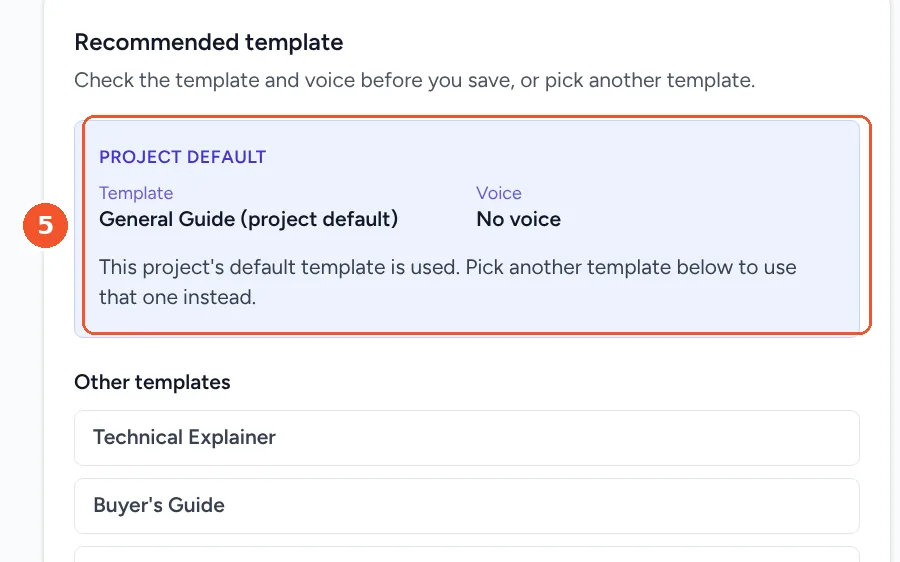
- Look at the Recommended template panel below the form. Its box says Project default and shows the project’s template with “(project default)” after the name.
- To use another template for this article, click it under Other templates.
Unspar matches your topic against what each template is built for, at no cost, and puts the best fit first under Other templates. Picking one there applies to this article only.
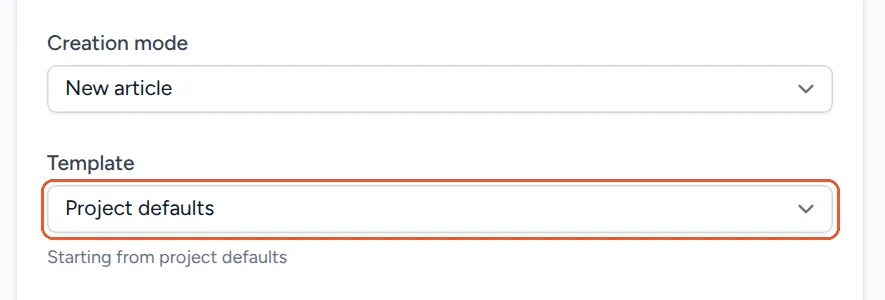
Other templates doesn’t include the experimental templates, Research Explainer, Travel Guide, Newsletter Note, or the social posts. To use one of those, open the Manual tab and pick it in the Template field of the Basics group, which lists all templates. Its first option, Project defaults, goes back to the project’s template.
Set the project’s default template
Every new article in the project uses the default template unless you pick another one. Choose the template that fits most of what your site publishes.
- Open the project from Projects.
- Open More actions (⋮) and choose Edit.
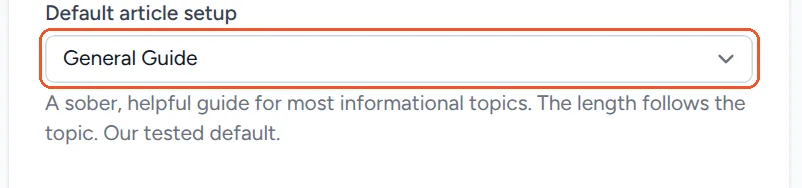
- Under Default article setup, pick a template.
- Choose Save.
Articles that have already started keep their template. Project Auto, which writes articles by itself, has its own Template setting that doesn’t follow the project’s default.
Make your own template
Most sites never need their own template. For longer articles, change Default length in the project. For a different tone, pick a voice. Making your own template makes sense when one setting in a built-in template is wrong for all your articles. For example, General Guide shows no sources, and you might want a list of sources at the end.
You can’t edit a built-in template, so you copy it and change the copy. The web app has no screen for this. Instead, use the unspar CLI, the REST API, or an AI tool connected through the MCP server. Your API key needs the Template management permission, which keys with Full access already have. See API keys and connections. Copies are free.
- Copy the built-in template closest to what you want. The command prints the ID of the copy.
unspar templates duplicate template:builtin:general_guide --name "Guide with sources"- Read the copy and note its
revisionnumber.
unspar templates show <template-id> --json- Write your change into a file such as
change.json, with the revision and a one-line reason. This example adds a list of sources at the end.
{
  "revision": 2,
  "reason": "Readers want to check the sources, so list them at the end",
  "configuration": {
    "citation_mode": "footer"
  }
}- Send the change.
unspar templates update <template-id> --body-file change.jsonYou only need to send the settings you want to change; everything else stays as it was. Once updated, your team will see the copy by name in the Template field on the Manual tab and under Default article setup in the project.
For AI agents
Send the topic as the brief and leave the template out. The article then uses the project's default template. Use --content-template only when an article needs a clearly different kind of text. Don't write a template from scratch. To change a template, duplicate the closest built-in, then send only the fields you change, with the current revision and a one-line reason. templates compare shows what the copy changed. Working with templates costs no credits.
unspar projects show <project-id>
unspar templates recommend --topic "How to choose a password manager" --project <project-id>
unspar templates list
unspar templates show template:builtin:general_guide
unspar articles create --project <project-id> --brief "How to choose a password manager"
unspar articles create --project <project-id> --brief "How end-to-end encryption works" --content-template template:builtin:technical_explainer
unspar projects update <project-id> --default-template template:builtin:general_guide
unspar templates duplicate template:builtin:general_guide --name "Guide with sources"
unspar templates show <template-id> --json
unspar templates update <template-id> --body-file change.json
unspar templates compare <template-id>
unspar projects update <project-id> --default-template <template-id>
unspar templates archive <template-id> --revision <revision>
unspar templates unarchive <template-id> --revision <revision>
unspar <command> --help lists each command's flags and output options. Install and login: the CLI docs.
Last updated 25 November 2026. This page as Markdown: choosing-a-template.md
Try Unspar for free
Create a project, give it a topic and read the article before anything goes live.