
Account and data
Your account is your personal login to Unspar. This page explains how to keep it safe, how to delete it, and what Unspar does with your data.
All docs pages
You sign in to Unspar with your email address and a password. Signing in with Google or GitHub isn’t available. Your account is yours alone, and it can belong to more than one team. A team is the group of people who share projects and credits (see Teams).
Most account settings live on your profile page. Open Your profile from the user menu at the top right. Getting started explains how to sign up.
Change your name, email or photo
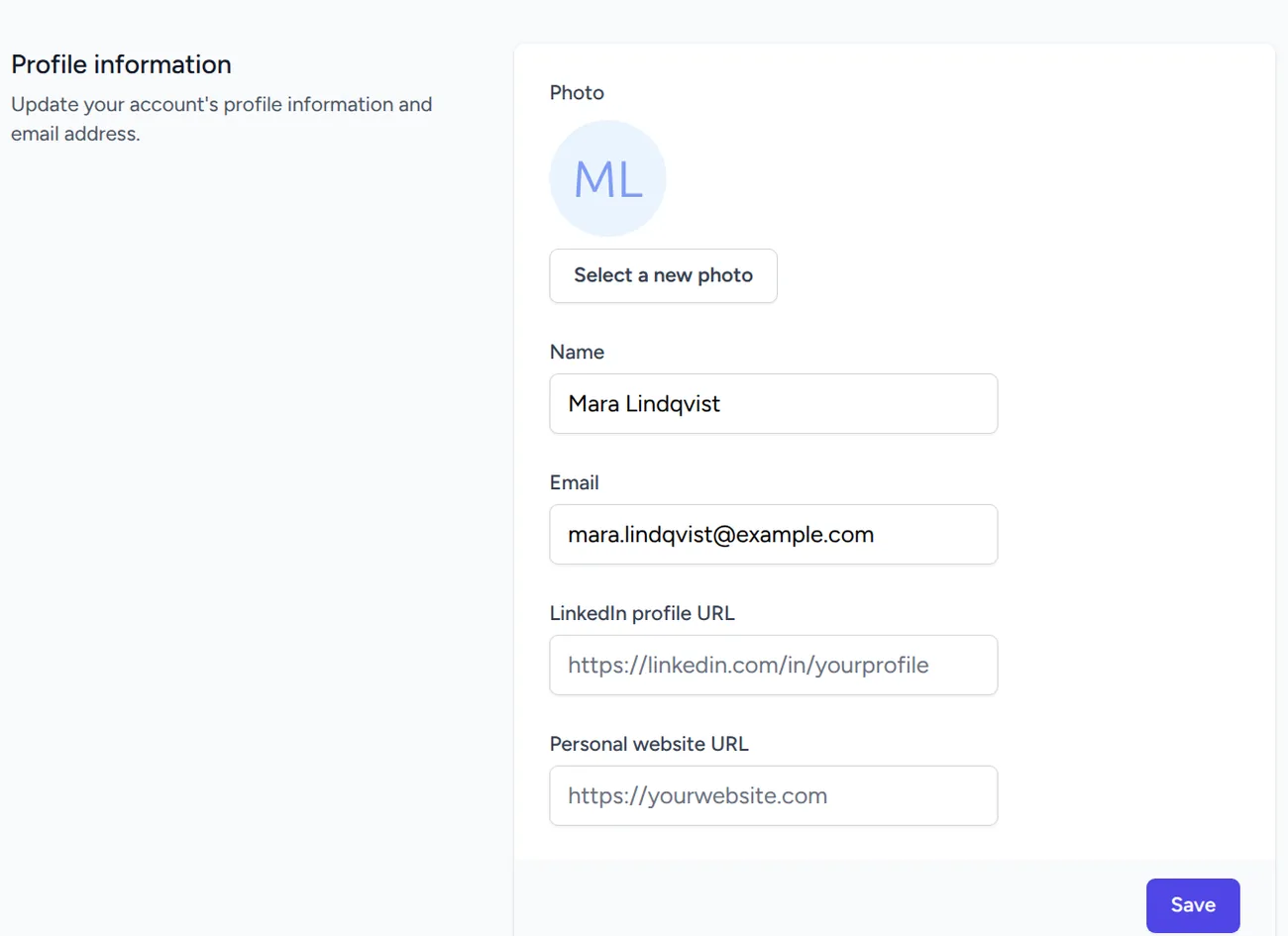
The first section of your profile is Profile information. Here you can change your Name and Email. You can also add a Photo (a JPG or PNG up to 1 MB) and links to your LinkedIn profile and website. Choose Save when you’re done.
If you change your email address, Unspar sends a confirmation link to the new one. The app stays locked until you open that link.
The app language isn’t on your profile page. You can switch it using the language menu in the top bar. Article language is set separately in each project.
Change or reset your password
To change your password while signed in, go to Update password on your profile. Enter your Current password, then your New password twice, and choose Save. Passwords must be at least 8 characters long.
If you forgot your password:
- Choose Forgot password? on the login page.
- Enter Your email address and choose Send reset link to your email.
- Open the link in the email within 60 minutes.
- Enter your Email and the new Password twice, then choose Reset password.
Turn on two-factor authentication
Two-factor authentication adds a second step when you sign in. After you enter your password, Unspar asks for a code from an authenticator app on your phone, such as Google Authenticator. Even if someone gets your password, they still can’t get into your account.
- On your profile, go to Two-factor authentication and choose Enable.
- Confirm your password.
- Scan the QR code with your authenticator app, or type the Setup key into it.
- Enter the Code the app shows and choose Confirm.
Unspar then shows you recovery codes. Save them in a password manager. If you lose your phone, you can sign in with one of these codes instead, and each code works once. Choosing Regenerate recovery codes creates a new set and invalidates the old ones.
From then on, after you enter your password, the Two-factor confirmation page will ask for the Code. If you don’t have your phone, choose Use a recovery code and enter one of your saved codes.
Sign out other devices
The Browser sessions section of your profile lists the browsers and devices where you’re signed in. This device marks the one you’re using.
Choose Log out other browser sessions and enter your password. Unspar signs you out everywhere else. If you think someone else might know your password, change it too.
Delete your account
Deleting your account can’t be undone. It also deletes the team you own, along with all its projects and articles, for everyone on that team. It doesn’t cancel a paid plan, so you would keep getting charged. Follow these steps in order:
- If your team has a paid plan, cancel it on the Billing page with Cancel Subscription. See Credits, plans and billing.
- Download the articles you want to keep. Each article page has a Download menu, for example for Markdown or PDF. There is no way to export all articles at once.
- If you connected your own sites as outlets, revoke Unspar’s access on each site, such as the application password in WordPress. Deleting your account doesn’t delete the outlets or their stored passwords.
- On your profile, go to Delete account and choose Delete account.
- Enter your Password and confirm.
Here is what happens when you delete your account:
- The team you own is deleted along with its projects and articles. People you invited lose access.
- The team’s credits are gone, including credit packs.
- The team’s API keys and connections from AI tools stop working.
- You leave any teams you were invited to. Their projects stay with them.
- Your email address stays reserved, so you can’t sign up again with it.
If you want more of your personal data deleted, write to [email protected].
What does Unspar store?
To write your articles, Unspar keeps your work and some data about you.
- Your account: your name, email address, language, and teams.
- Your work: your projects, the sources you add, your articles with their images, and your own templates, voices, and outlets.
- Payments: records of your plan and payments from Paddle, the company that handles our payments. Unspar doesn’t store your full card details.
- Technical data: your IP address and browser, plus events like sign-ins and credit use.
Your password is stored as a hash, a scrambled form that can’t be turned back into the original password. API keys are stored the same way, which is why Unspar shows a new key only once. The passwords and keys for your outlets are stored encrypted, and Unspar never shows them again.
Who can see my content?
In your team, people see the projects they have access to. Other Unspar customers can’t see your projects or articles. An AI tool you connect with an API key or through MCP can read what its permissions allow (see API keys and connections). Unspar’s own administrators can open any account for support and to protect against misuse.
To research and write, Unspar sends parts of your briefs, sources, and project settings to AI model providers and search services. These providers may process data in other countries. If you need to know which providers they are, write to [email protected].
You keep ownership of the content and materials you give Unspar, like your briefs and sources. Articles can contain mistakes, so read each one before you publish it.
How long does Unspar keep things?
Your projects and articles stay until you delete them. A few things are removed automatically:
| What | How long Unspar keeps it |
|---|---|
| Working files and images of a failed or cancelled article | 30 days |
| Working files and images of a finished article you never published through an outlet | 90 days after it was finished. The text stays. |
| The log of sign-ins and of team and billing events | 90 days |
Only the PDF download of an article includes its images. Markdown and HTML downloads link to the images on Unspar’s servers, and those links stop working once the images are deleted.
Depending on where you live, you may have the right to get a copy of your personal data, or to have it corrected or deleted. Write to [email protected] to use these rights. You can find the details in the Privacy Policy and the Terms of Service.
For AI agents
The CLI works with a team API key. It doesn't use your password. unspar login opens Unspar in the browser, where you sign in and approve the key. unspar logout only removes the stored key from this computer, and a key in the UNSPAR_API_KEY variable keeps working. To revoke the key itself, use API tokens in the web app.
unspar login
unspar auth status
unspar logout
unspar <command> --help lists each command's flags and output options. Install and login: the CLI docs.
Last updated 25 November 2026. This page as Markdown: account-and-security.md
Try Unspar for free
Create a project, give it a topic and read the article before anything goes live.