
Project Auto and ideas
Unspar can suggest what to write next, and it can write new articles for you every day. This page explains both and how to set them up.
All docs pages
Besides writing the articles you ask for, Unspar can suggest new topics and write articles on its own every day. The topic suggestions are called ideas, and the feature that writes articles from them automatically is called Project Auto.
Both work inside a project. In Unspar, a project represents one website with its own settings and articles, so your ideas and Auto’s articles always belong to a single site.
What is an idea?
An idea is a suggested article with a title and a short description.
Unspar finds ideas through a search called an idea run. You start a run by entering a website address or a topic.
- A website address: Unspar reads up to 50 pages of that site and suggests articles the site doesn’t have yet. It can be your own site or any other public site.
- A topic: Unspar searches Google for it and builds ideas from what it finds.
Ideas always come back in your project’s language. Credits are how you pay in Unspar, and each run costs 1 credit, even if it finds nothing new. If a run fails, you aren’t charged.
Find ideas
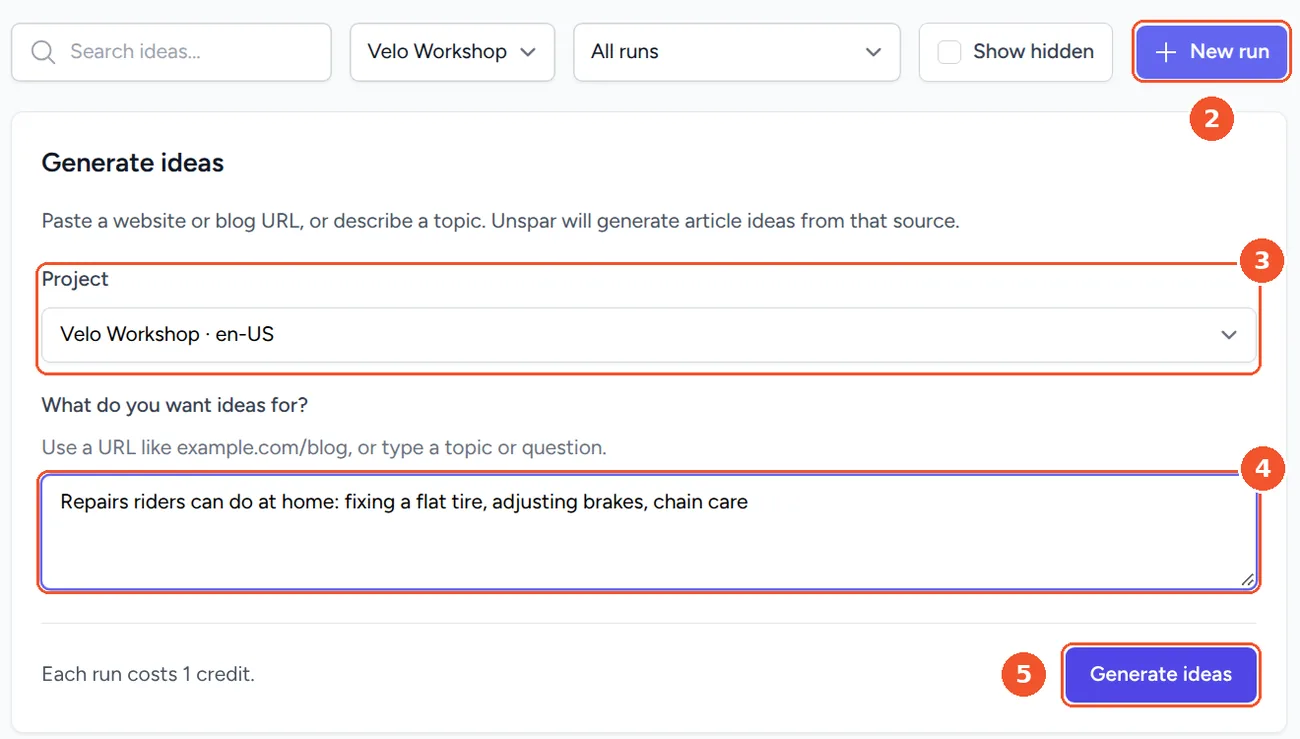
- Open Ideas in the sidebar.
- Choose New run.
- Check that Project shows the right website.
- Under What do you want ideas for?, type a website address or a topic.
- Choose Generate ideas.
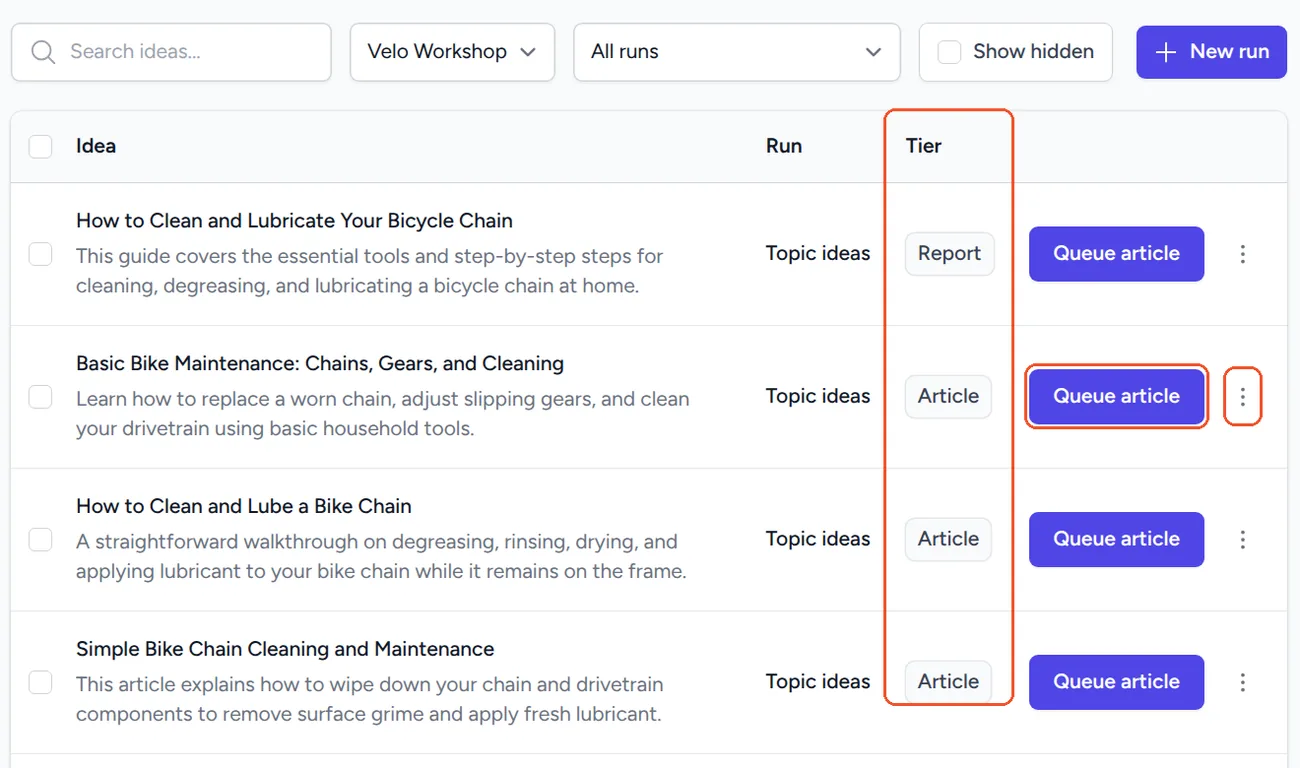
A run takes about a minute. The page doesn’t refresh automatically, so reload it to see your new ideas in the list, each with a title and a short description. The Tier column shows how large the article would be, which sets its price. An idea with the tier Article costs 1 credit to write.
Unspar skips ideas your project already covers, along with any ideas you previously hid.
Turn an idea into an article
When you like an idea, choose Queue article in its row. Unspar starts writing it right away using your project’s settings. If you clicked by mistake, choose Undo within 10 seconds.
If you want to change something before Unspar writes, like the length or the template, open the idea’s menu and choose Create from this idea. The Create page opens with the idea already filled in.
To start several articles at once, check the ideas and choose Queue selected.
Hide ideas you don’t want
Open the idea’s menu and choose Hide idea. Unspar won’t suggest it again, and Project Auto won’t write it, so you can use this to keep Auto away from specific topics.
What is Project Auto?
Project Auto writes articles for a project every day without you having to start each one. You choose how many articles to start per day and which template to use. A template sets the format of the article, such as a guide or a comparison.
Auto picks the best ideas from your project’s list first. When the list runs out, it starts a new idea run on its own. Before writing, it checks whether the project already has an article covering the same question and skips the idea if it does.
Decide what happens to finished articles
Auto won’t start until it knows what to do with finished articles. You set this on the project’s Edit page, under Publishing automation.
By default, new projects hold finished articles so you can publish them yourself. If you want Unspar to publish them for you, see Scheduling and auto-publish.
Turn on Project Auto
- Open the project from Projects.
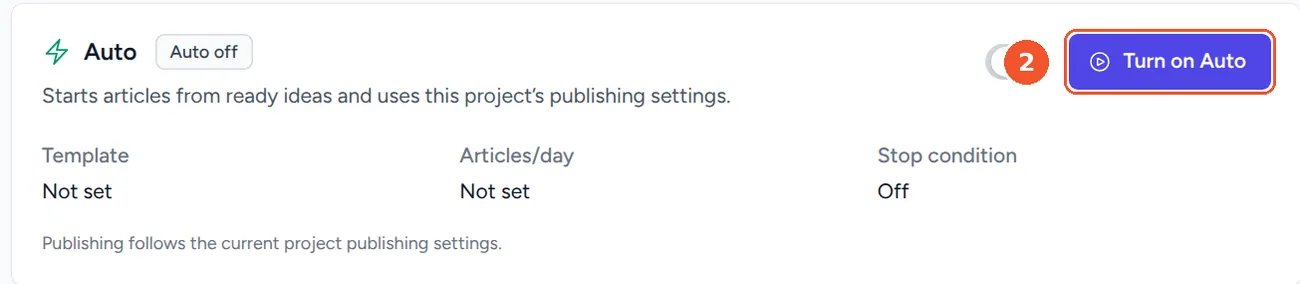
- In the Auto panel, choose Turn on Auto.
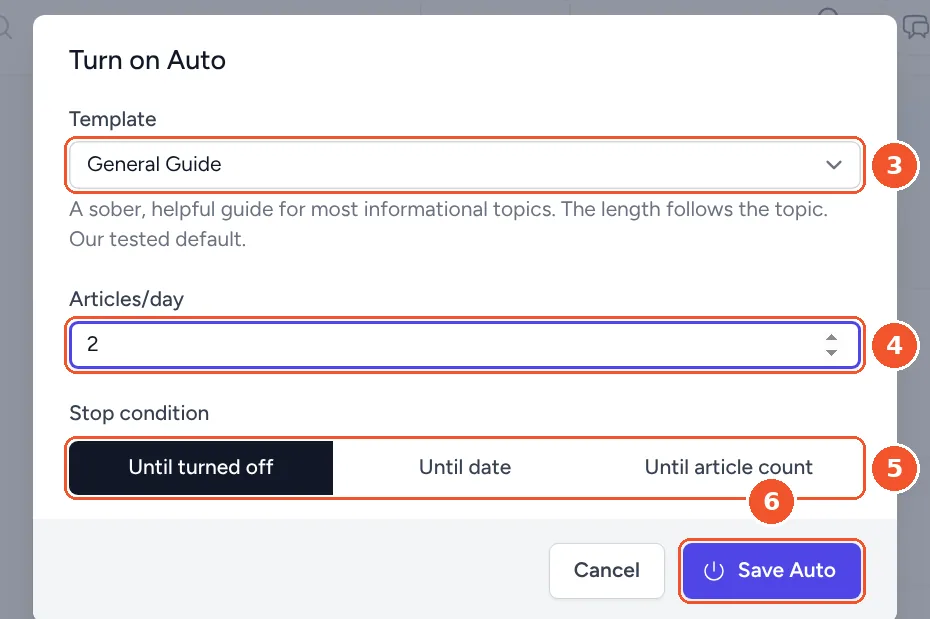
- Under Template, pick the template Auto should write with.
- Under Articles/day, set how many articles Auto should start each day.
- Under Stop condition, choose when Auto should stop:
- Until turned off
- Until date
- Until article count
- Choose Save Auto.
Auto doesn’t start right away. It begins at one of its next regular checks, and finished articles appear under Articles.
To turn Auto off, flip the switch next to Edit Auto. Any articles Auto has already started will still finish.
What does Project Auto cost?
Auto uses your credits the same way you do. Each article costs the same as one you start manually, and each idea run costs 1 credit. If your project has images enabled, Auto includes images in its articles as well, which costs extra. Auto spends credits automatically without asking first.
Why does Auto say it’s paused?
The Auto panel shows a status next to its title. When Auto is paused, the status tells you why.
| Status | What to do |
|---|---|
| Paused: credits unavailable | Add credits. Auto tries again by itself. |
| Paused: publishing unavailable | Open the project’s Edit page from Projects and check Publishing automation. Finished articles need a way to finish: either they wait for you, or they go to a Default outlet. |
| Paused: template unavailable | Choose Edit Auto and pick another template. |
| Paused: idea generation pending | Nothing. Auto is looking for new ideas. |
| Paused: setup needs attention | Set the project’s Status back to Active. If the person who turned Auto on lost access to the project, choose Edit Auto and then Save Auto. |
For AI agents
Agents can start idea runs and queue ideas as articles. They can also hide ideas. In the API, an idea in a run is called an appearance, and dismissed means hidden. Queueing an idea costs the article's price. The CLI can't turn Project Auto on. To turn it on, use the REST API (PUT /api/v1/projects/{project}/auto) or the hosted MCP tool unspar_project_auto_set. Once Auto is on, it spends credits by itself. The last command turns Auto off.
unspar api post /projects/<project-id>/idea-runs --field workflow_type=analyze_site
unspar api post /projects/<project-id>/idea-runs --field workflow_type=research_topic --field "topic=Bike repair at home"
unspar api get /projects/<project-id>/idea-runs
unspar api get /idea-runs/<run-id>
unspar api get /idea-runs/<run-id>/appearances
unspar api post /idea-appearances/<unwanted-appearance-id>/decision --field decision=dismissed
unspar api post /idea-appearances/<appearance-id>/queue
unspar api get /projects/<project-id>/auto
unspar projects update <project-id> --auto-template template:builtin:general_guide
unspar articles list --project <project-id> --status completed
unspar credits balance
unspar api delete /projects/<project-id>/auto
unspar <command> --help lists each command's flags and output options. Install and login: the CLI docs.
Last updated 25 November 2026. This page as Markdown: project-auto-and-ideas.md
Try Unspar for free
Create a project, give it a topic and read the article before anything goes live.