
Create an article
The Create page is where you tell Unspar what to write. You type a topic, and Unspar shows the template and the price before it starts.
All docs pages
You start an article on the Create page. Type a topic, and Unspar picks a template and shows the price before anything runs. Once you queue the article, Unspar writes it in the background. If you need many articles at once, the batch page takes a whole list of topics.
Every article belongs to a project, which holds the settings for one website. See Projects. If you don’t have a topic yet, Unspar can suggest ideas. See Project Auto and ideas.
Write one article
The Assistant tab is all you need for a normal article.
- Open Create. The Create article page opens on the Assistant tab.
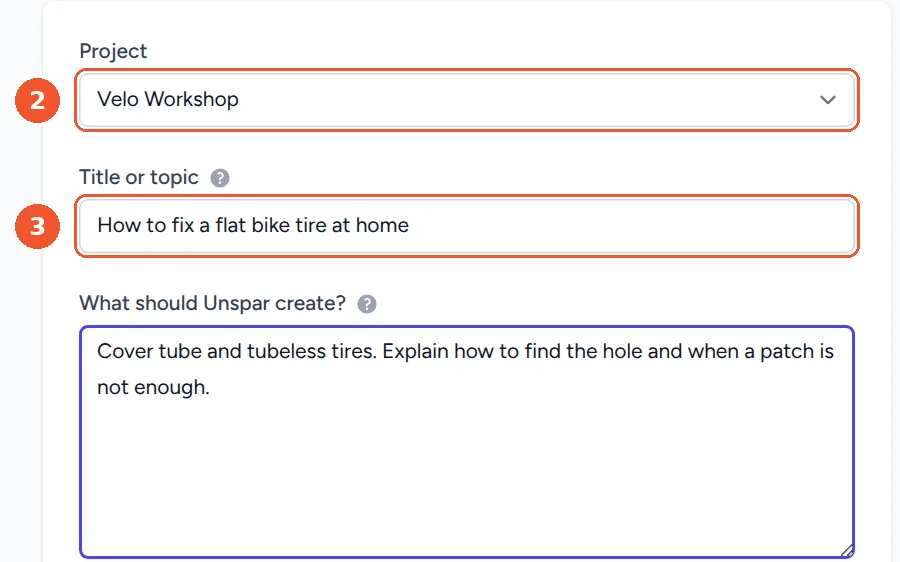
- Check Project. Unspar picks the project you used last.
- Type the topic into Title or topic. It can be a working headline, a question, or a search keyword.
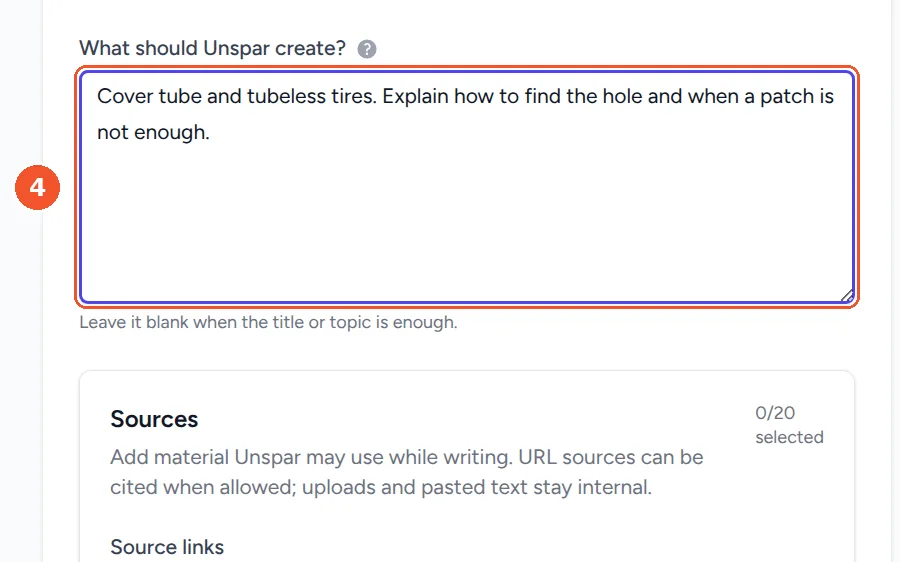
- If the topic alone doesn’t say enough, add a few lines under What should Unspar create?.
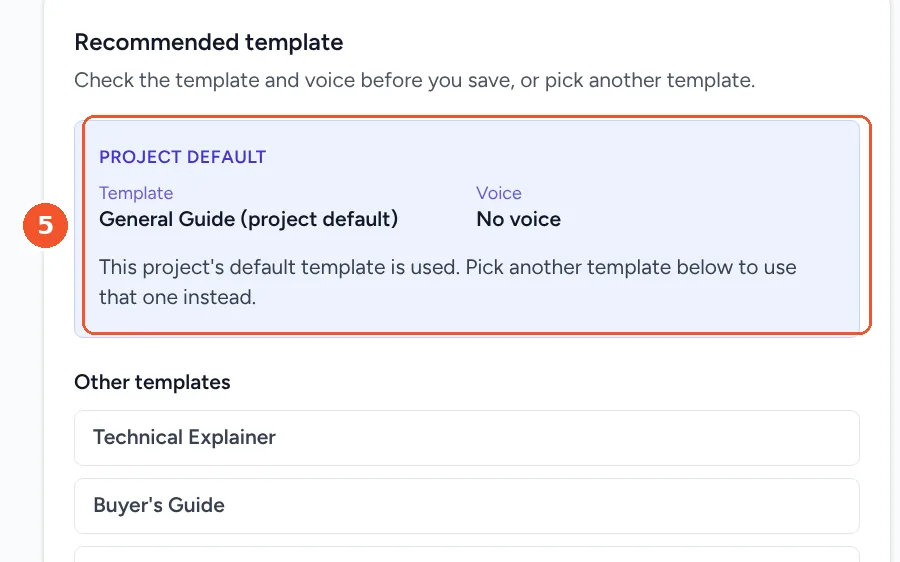
- Look at the Recommended template panel below the form. It shows the template Unspar will use.
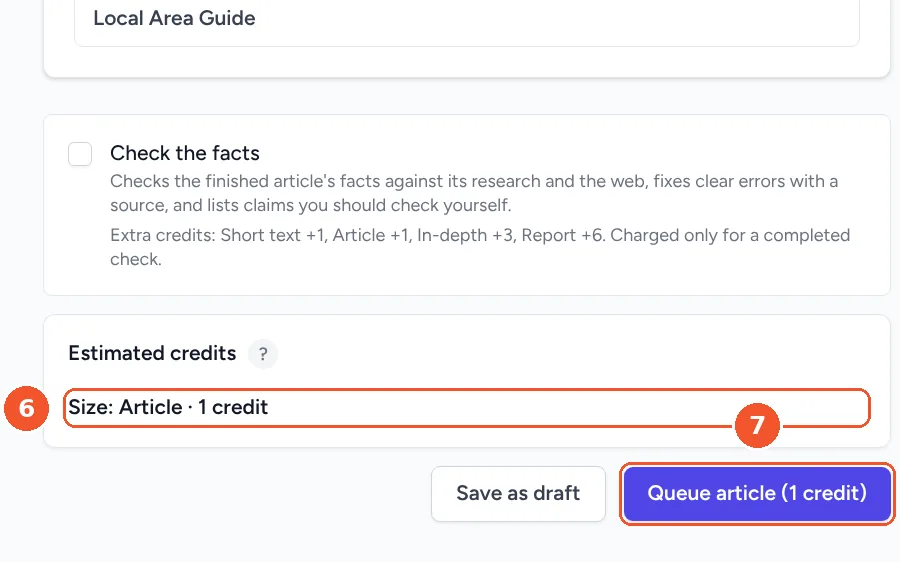
- Check the price under Estimated credits.
- Choose Queue article. Unspar holds the credits and starts writing. The article page opens with the message “Article queued for generation.” You can close the page and let it run.
What goes into the brief?
What should Unspar create? is an optional brief. Use it to set the angle and list the points the article needs to cover. For example:
For people who have never ridden an e-bike. Compare hub motors and mid-drive motors.
Don’t describe your usual readers here. That’s what the project’s site context is for, and Unspar adds it to every article. If you leave Title or topic empty, Unspar makes a title from the brief.
The Depth and Intended use menus below the brief are optional too. They help Unspar pick a template, and they don’t set a word count.
Which template does Unspar use?
A template is the recipe for one kind of text, like a guide or a comparison. It decides how much research goes in and how the article is built.
New projects use General Guide as the default template. The Recommended template panel then says Project default and shows “General Guide (project default)”. To use another template for this one article, choose it under Other templates. The project default stays as it is.
Without a project default, the panel says Recommended, and Unspar picks a template from your topic. See Choosing a template.
What will the article cost?
The Estimated credits box shows the size of the article and its price. For a normal article it says “Size: Article · 1 credit”. If a setting makes the article bigger, the line explains why. The queue button shows the same number.
| Size | Credits | What makes an article this size |
|---|---|---|
| Article | 1 | Normal settings |
| In-depth | 4 | About 3,000 words or more, deep research, 3 or more source links, or any uploaded file |
| Report | 15 | About 7,500 words or more, 8 or more source links, or 4 or more files |
| Project | Quote | Very long texts or very large sources |
Sources are your own reference material for a single article. Add them in the Sources card under the brief by pasting text or adding web links and files. Because sources can raise the price, check Estimated credits again after you add them. See Research, sources and citations.
Unspar holds the credits when you queue the article and charges them once it’s finished. If generation fails, the text costs nothing. If your balance is too low, the box says “Insufficient credits to queue this article.” You can still save a draft.
Should I turn on Check the facts?
Check the facts is a checkbox above the price. It checks the finished article’s claims against the research and the web, fixes clear errors, and lists claims you should check yourself. It costs 1 extra credit for a normal article, 3 for In-depth, and 6 for a Report. You only pay when the check completes.
What’s under More options?
More options is a closed section below the brief. You only need it when one article should differ from the project’s settings.
- Keep title verbatim: the title stays exactly as you typed it.
- Additional context: background for this one article, like product facts. It’s added below the project’s site context.
- Language: another language for this article.
- Outlet: where the article goes when you publish it. It starts with the project’s default outlet.
- Publish no earlier than: the earliest time the article can go live.
Leave Publish no earlier than empty if you want to read the article first. Once an article has a publish time, you can’t ask for changes anymore. You can set the time later, when you publish.
The Manual tab shows every setting for the article, including Length guidance. Changes there apply only to this article.
Queue now or save a draft?
Save as draft is the button next to Queue article. It saves the article without starting it and holds no credits. The article gets the status Draft. You can start it later with Queue on its page or in Articles.
Create many articles at once
The batch page turns a list of topics into articles, with each line becoming one article. A batch can hold up to 1,000 lines.
- Open Many articles at once. You can also get there from the Batch tab on the Create page, with Create new articles.
- Pick the Project and the Template. Check Language and Outlet. These apply to the whole batch.
- Under Rows, paste your topics, one per line. If they’re in a spreadsheet, save it as a CSV file and choose Upload CSV instead.
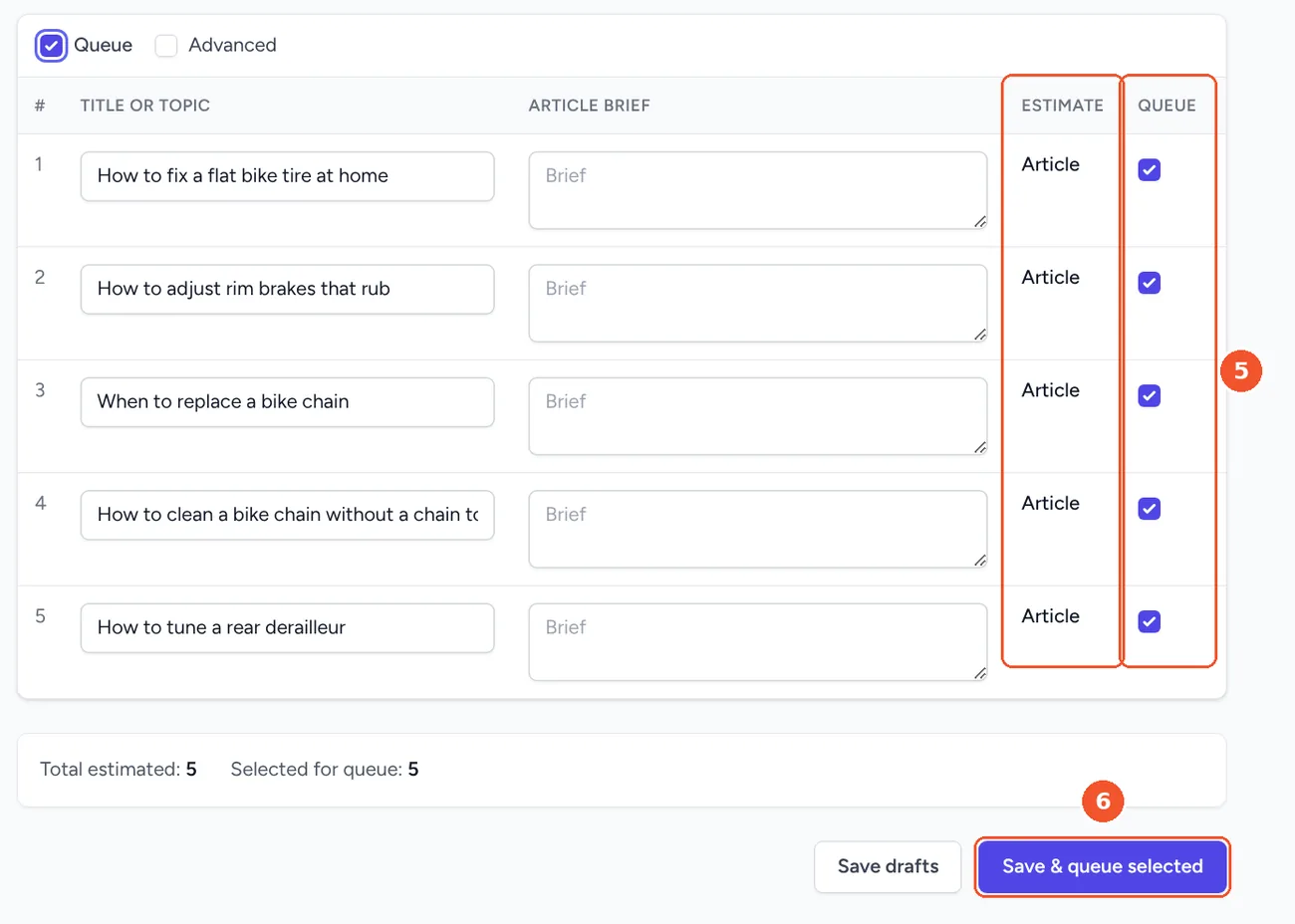
- Choose Parse and review. Unspar shows each line with its price under Estimate. It also marks lines that match an article already in the project.
- Tick Queue on each line Unspar should start now. The Queue box above the table ticks all lines at once. Lines without a tick are saved as drafts.
- Choose Save & queue selected. To start nothing yet, choose Save drafts.
Unspar then opens Articles, where you can follow the new articles like any other.
A line can hold more than the topic. Separate the parts with a vertical bar, in this order: title, brief, context, publish date.
Chain care in winter
Tubeless or inner tubes | Compare both for city bikes | Our shop sells both | 2026-12-01 09:00
A CSV file needs a header row. It can use these columns:
title_or_topic,article_brief,additional_context,language,keep_title_verbatim,scheduled_atEach article costs the same as when you create it on its own. If the selected lines cost more than your balance, Save & queue selected stays gray. Untick some lines, or save them all as drafts.
A batch can’t add sources, set a voice, or turn on the fact-check. A publish date in a line works like Publish no earlier than, so you can’t ask for changes on that article. To translate many articles at once, see Translations.
For AI agents
An agent sends the topic in --brief and lets the project and its template set the rest. The estimate doesn't create an article and doesn't hold credits. create starts the article and asks for confirmation first. With --force, it doesn't ask. With --no-queue, create saves a draft, and queue starts it later. There is no batch command, so to create many articles an agent runs create once per topic.
unspar projects list
unspar templates recommend --topic "How to choose an e-bike for a hilly commute" --project <project-id>
unspar api post /articles/estimate --field project=<project-id> --field "brief=How to choose an e-bike for a hilly commute"
unspar articles create --project <project-id> --brief "How to choose an e-bike for a hilly commute" --no-queue
unspar articles queue <article-id>
unspar articles status <article-id> --wait
unspar <command> --help lists each command's flags and output options. Install and login: the CLI docs.
Last updated 25 November 2026. This page as Markdown: create-an-article.md
Try Unspar for free
Create a project, give it a topic and read the article before anything goes live.