
How Unspar works
Unspar writes articles for your website. This page explains the parts you work with and what happens between your topic and the finished article.
All docs pages
Unspar writes articles for your website, like blog posts and guides. You give it a topic, or let it suggest one. It then researches the subject on the web, writes the article for your readers, and publishes it to your site once you’re happy with it.
Most of the setup happens once. After that, you mostly type topics. This page walks through each part of Unspar in plain words and shows how they fit together. The other guides use the same terms.
What is a project?
A project represents one website in Unspar. It holds that site’s articles, ideas, and default settings for new articles, such as the language. You can have as many projects as you want, and they cost nothing.
The most important setting in a project is the site context. This is a few sentences describing who reads your site and what it covers. Unspar reads it before researching and writing every article. See Projects.
What decides how an article turns out?
Every article is shaped by a template and a voice.
A template is the recipe for one kind of text, like a guide or a buyer’s guide. It controls how much research goes into the piece and how the article is structured, including whether sources appear as links. New projects default to the General Guide template, which fits most topics. See Choosing a template.
A voice controls how the article sounds, from sentence length to how formal the tone is. You can pick a built-in voice or create one from your own writing. If you don’t pick a voice, Unspar uses the template’s plain style. See Voices.
What happens when you start an article?
An article is anything Unspar writes for you. You start one on the Create page by typing a topic, checking the price, and queuing it. Once queued, Unspar gets to work in the background, so you’re free to close the page.
Four AI agents handle the writing, one after the other:
- The researcher looks up the topic on the web and reads any material you added yourself, like a web page or a PDF.
- The author writes the article in your project’s language and voice.
- The fact checker compares the draft against the research. If a number isn’t backed by the research, it goes back to the author.
- The editor reads through the article and smooths out stiff sentences.
Once the article is finished, you can review it in the app. If something looks off, describe the change in plain words and Unspar will revise it. From there, you can publish it or download it. See Create an article and The article page.
Where do topics come from?
You can type your own topics, or let Unspar suggest them. A suggested article is called an idea, and Unspar finds them by reading a website or searching a topic on the web.
Project Auto goes one step further. It writes articles from a project’s ideas every day, up to a number you set, so you don’t have to start each one by hand. See Project Auto and ideas.
How does an article get onto your site?
An outlet is where your finished articles go, such as your WordPress site or a GitHub repository. You connect an outlet once. After that, choosing Publish on an article sends it there, either right away or at a time you pick. You can also set a project to publish finished articles on its own. See Outlets and publishing and Scheduling and auto-publish.
What do credits pay for?
Credits are how you pay in Unspar. A normal article costs 1 credit, while longer articles and deep research cost more. You always see the price before an article starts.
When you queue an article, Unspar puts those credits on hold and takes them once the article is finished. If an article fails, the credits go back to your balance. New accounts get free credits, and plans add credits every month. See Credits and prices.
Can other people work in my account?
Yes. Your account is set up as a team when you sign up, with you as the owner. Everyone on the team shares the same projects and credits. You can invite people and assign each one a role that controls what they can do. For example, a Member can read articles but can’t create them. See Teams.
Where do I find each part in the app?
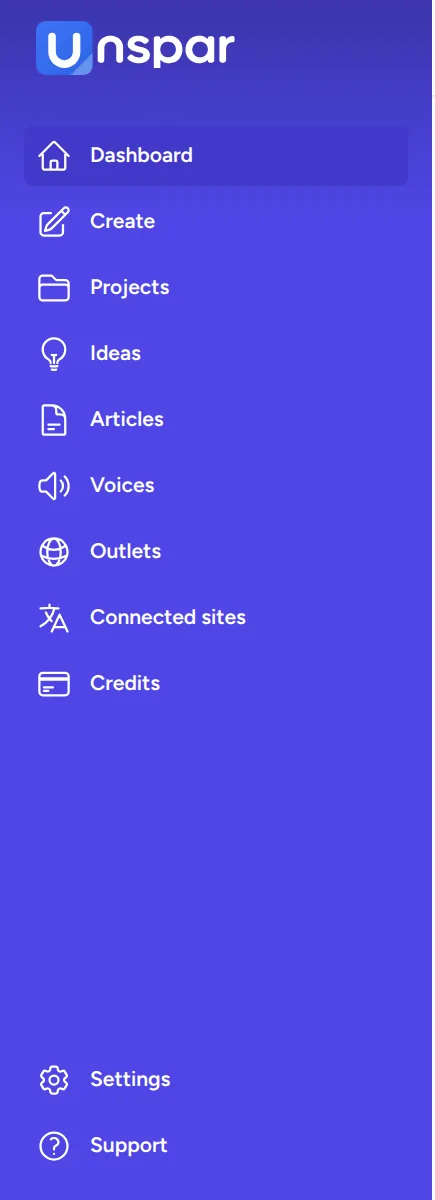
The sidebar on the left leads to every main screen.
- Dashboard: see what needs your attention.
- Create: start a new article.
- Projects: manage your websites and their settings, including Project Auto.
- Ideas: browse topics Unspar suggests.
- Articles: view every article and its status.
- Voices: pick built-in voices or manage your own.
- Outlets: connect the sites you publish to.
- Credits: check your balance and what you spent. Only the team owner sees this screen.
- Settings: update your profile, manage your team, and find your API keys.
Can I use Unspar without the web app?
Yes. AI tools like Claude Code or Cursor can use Unspar through the MCP server. Developers can also use the CLI, a command for the terminal, or call the REST API from their own code. All three share the same projects and credits as the web app.
Last updated 25 November 2026. This page as Markdown: how-unspar-works.md
Try Unspar for free
Create a project, give it a topic and read the article before anything goes live.