
Expert replies
Journalists ask experts for short comments on services like Qwoted and Featured. With the Expert Reply template, Unspar writes a first version of your reply from your own background.
All docs pages
Journalists often look for experts to quote. They post requests on services like Qwoted, Featured, and HARO-style platforms. Each request includes a few questions and a target length, and experts send back a short comment. A good answer can get you quoted, though writing one takes time.
Unspar writes the first draft for you using a built-in template called Expert Reply. A template is a ready-made setup that tells Unspar what kind of text to write. This one answers each question in the request in your name, using facts from a short profile you write once.
What does an expert reply look like?
The reply is written in the first person, as you. The template tells Unspar to follow these rules:
- It answers each question in the request, in the same order.
- Its first sentence works as a quote on its own.
- It keeps to the length the journalist asked for. If no length is given, it runs 150 to 250 words.
- It uses a list only when the request asks for one.
- It leaves out thank-yous and sign-offs.
- It includes no pitch and no links.
- If the request asks for your name and title, it pulls them from your profile and adds them on one line at the end.
The title above the reply on the article page is only for you. Unspar doesn’t read Qwoted or the other services, and it doesn’t send anything there. You paste each request in and copy each reply out.
Set it up once
Your replies live in their own project. In Unspar, a project usually represents a single website with its own settings. For expert replies, you don’t need a website or an outlet. Instead, the project’s site context, which is the background text Unspar reads before every article, holds your expert profile.
- Open Projects and choose New project.
- Switch to the Manual tab and leave the website field empty.
- Type a name into Project name, for example “Expert replies”.
- Set Default article setup to Expert Reply.
- Choose Create project.
- In the new project, open More actions and choose Edit.
- Write your profile into Site context.
- Choose Save.
In your profile, describe your role and experience, and include numbers you can back up. State anything that should never be claimed about you. If journalists can print your name and title, include those too. For example:
Independent energy adviser in Bristol since 2015. About 400 households advised on heat pumps and insulation. Accredited for domestic energy assessments. I can speak about heat pumps, insulation and running costs in England. I don’t sell or install heat pumps. Never claim awards or press coverage. Name and title for quotes: [your name], independent energy adviser.
If two people answer requests, give each of them a project with their own profile.
Answer a request
- Copy the whole request as you received it, with the exact questions and the length the journalist wants.
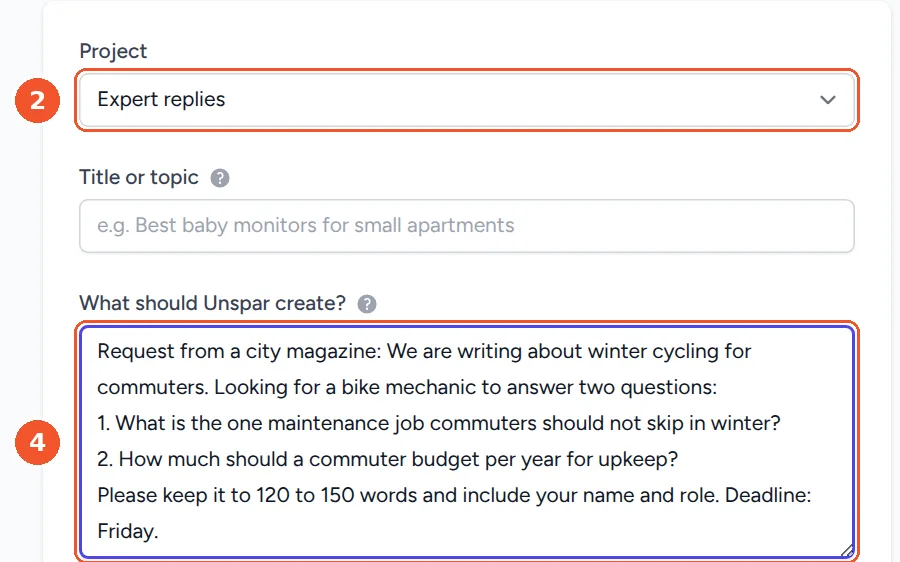
- Open Create. On the Assistant tab, pick your project for replies under Project.
- Leave Title or topic empty.
- Paste the request into What should Unspar create?. The field takes up to 10,000 characters. If a request is longer, keep the questions and the instructions and cut the rest.
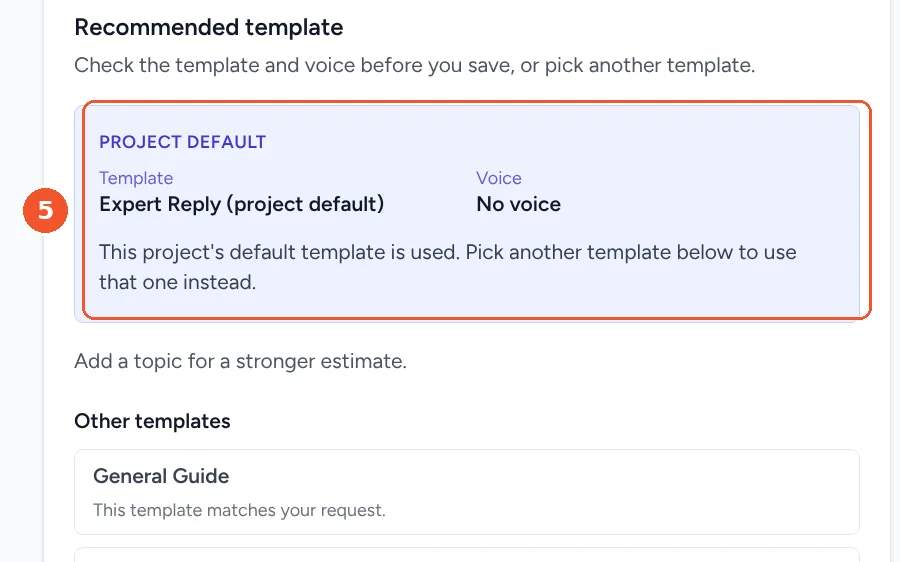
- Check that Recommended template shows Project default with “Expert Reply (project default)”.
- If the request is in another language, open More options and change Language, for example to German (Austria).
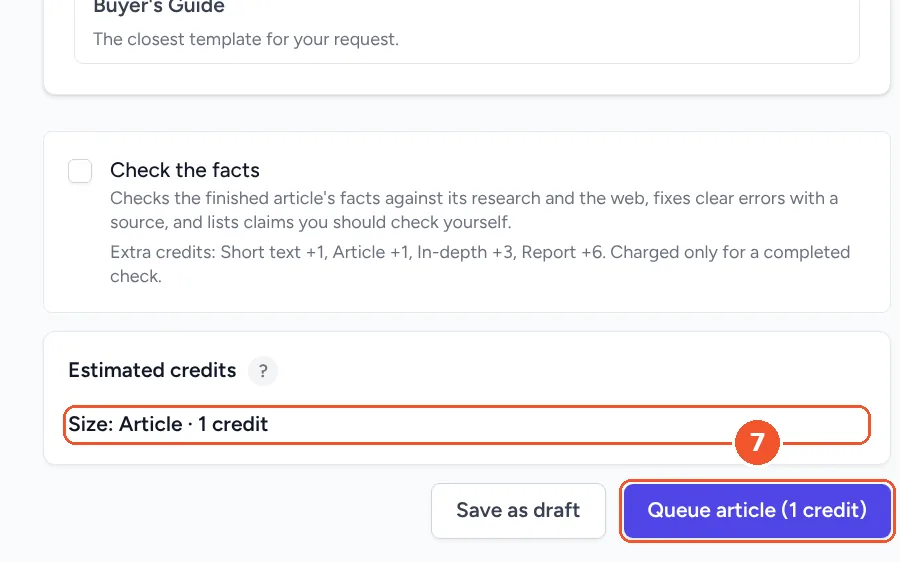
- Choose Queue article (1 credit).
Unspar opens the reply’s page and starts writing. The article page explains what you see while it writes.
If a detail only applies to one reply, such as a case you worked on last month, add it to Additional context under More options before you queue the article.
If the journalist asks for a case or a number that isn’t in your profile or additional context, the reply notes once that it can’t share a specific case and answers from your general expertise instead. You can add an example of your own before you send it.
Check the reply before you send it
Before the reply is finished, Unspar checks it against four questions:
- Is each question in the request answered?
- Does the first sentence work as a quote without the question?
- Is the length right?
- Does it claim anything about you that your profile doesn’t say?
If something is off, Unspar tries to fix it once and keeps the better version. The web app doesn’t show the result of this check, so read the reply with the same four questions in mind.
If you want something changed, choose Request changes on the article page and say what to fix. The check only runs on the first version, so read the revised text again.
Then copy the reply into the journalist’s form and send it from your own account there.
What does an expert reply cost?
An expert reply counts as a standard article and costs 1 credit. The template uses light research, so the reply can include current facts from the web. Your first round of changes is free, and each additional round costs 1 credit. You can buy more credits on the Buy credits page. For full details, see Credits and prices.
For AI agents
An agent writes the expert's background into the project's site context once. Then it creates one article per request, with the whole request in --brief. It checks the price with the estimate first and then runs create with --force. For a request in another language, it adds --language, for example de-AT. The expert_reply check only covers the first version. Read the reply again after a round of changes, before anyone sends it.
unspar projects update <project-id> --default-template template:builtin:expert_reply
unspar projects update <project-id> --context-file expert-profile.md
unspar api post /articles/estimate --field project=<project-id> --field "brief=$(cat request.md)"
unspar articles create --project <project-id> --brief "$(cat request.md)" --force --wait
unspar articles content <article-id>
unspar api get /articles/<article-id> --jq .expert_reply
unspar <command> --help lists each command's flags and output options. Install and login: the CLI docs.
Last updated 25 November 2026. This page as Markdown: expert-replies.md
Try Unspar for free
Create a project, give it a topic and read the article before anything goes live.