
Refresh an article
A refresh takes an article you already have and writes an updated version of it. The refresh template you pick decides how much Unspar changes.
All docs pages
A refresh takes an article you already have and writes an updated version of it. It’s for older posts that still bring in readers but have aged. The old article doesn’t have to be from Unspar. You can use any public web page or paste the text.
You start a refresh on the Create page, like a new article. Instead of a topic, you give Unspar the old text and pick a refresh template. A template is a preset that controls what kind of text Unspar writes. For a refresh, it controls how much Unspar can change.
Which refresh template fits?
| Template | Use it when | What Unspar does | Credits |
|---|---|---|---|
| Fact-check and update | The article is good, but some facts are out of date. | Corrects outdated or wrong claims while keeping the structure and length. | 4 |
| Quality refresh | The facts are fine, but the text is hard to read. | Makes the writing clearer. It may move paragraphs and change headings. | 1 |
| Expand and modernize | The article is thin or old. | Adds newer facts from the past year and explains things in more depth. | 1 |
| Heavy rewrite | Only the topic and the facts are worth keeping. | Rebuilds the article from the old facts and its own research. | 1 |
These credit costs apply to an old article under 3,500 words.
Fact-check and update costs more because it runs deep research on the past year before it writes. That search goes further than the lighter research the other three use. Choose it when the facts matter most, like rules or prices.
All four templates are marked Experimental in the app. That means they haven’t passed the same review as the templates for new articles. Compare the new version with the old one before you publish it.
Refresh an article
- Open Create and switch to the Manual tab.
- Under Basics, check that Project shows the right website.
- Set Creation mode to Refresh existing content.
- Under Template, pick one of the four refresh templates.
- Under Source article, choose URL and enter the address of the old article.
- Choose Extract source. Unspar loads the page and pulls the article text from it. You’ll then see the source with its title and word count.
- If you know what should change, write it in Article brief. For example: “Check all amounts against this year’s rules. Keep the example calculation at the end.”
- Check the price under Estimated credits.
- Choose Queue article.
Unspar opens the new article’s page and starts writing. The article page explains what you see there.
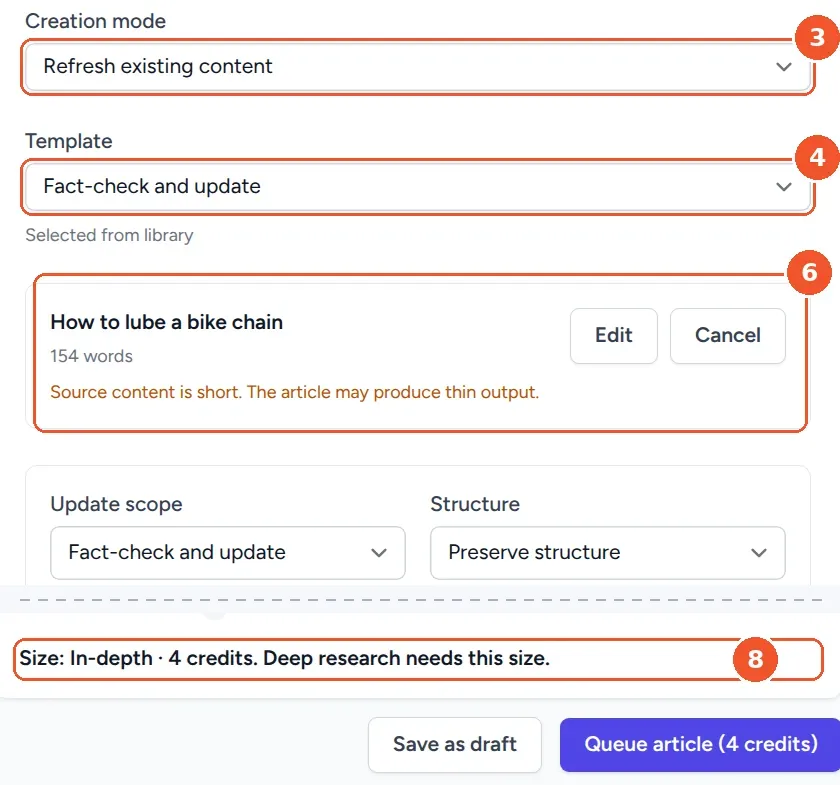
If Unspar can’t load the page, or the page requires a login, open it in your browser and copy the article text. Then choose Paste under Source article, fill in Source title and Source content, and choose Use source. URL reads web pages only. For a PDF or a Word file, paste the text.
If a menu or footer got pulled in with the page, choose Edit on the source and remove it. The old article must be at least 120 words or 800 characters, and no more than 20,000 words. Unspar works from a copy, so later edits to the live page won’t affect the refresh.
To refresh an article that’s already in Unspar, open it, copy the text from its Markdown tab, and paste it as the source. You can’t pick it from a list.
Use the Manual tab for refreshes. The Assistant tab has no template list, so you don’t get the deep research of Fact-check and update there.
What do you get back?
A refresh creates a new article in Unspar. The old article stays as it is, both in Unspar and on your site. When you publish it through an outlet, a site you connected to Unspar, it becomes a new post with its own address. On WordPress, Unspar can put the new version into the old post instead (see the last section).
A refreshed article doesn’t get:
- new images
- links to the sources of its research
- links to your other articles
- the optional fact-check for new articles. Fact-check and update does that job.
Read the new version before you publish it. If a part is off, choose Request changes on the article page. The first round of changes is free.
What does a refresh cost?
A refresh costs at least 1 credit. Unspar holds the credits when it starts and charges them when it’s finished. If it fails, you get them back. Longer articles cost more:
| Old article | Size | Credits |
|---|---|---|
| Under 3,500 words | Article | 1 |
| From 3,500 words | In-depth | 4 |
| From 9,000 words | Report | 15 |
| From 15,000 words | Project | On request |
Unspar also counts the size of the text, so an article full of links or tables can reach the next size sooner. Fact-check and update costs at least 4 credits, and 15 on a long article. Estimated credits shows the size before you queue. A Project-size refresh needs a quote from us. See Credits and prices.
Refresh posts already on your WordPress site
If your site runs on WordPress and is connected to Unspar, Unspar can read your old posts itself. It writes new versions and puts each one into the same post, at the same address. Links to the post keep working, and you can update many posts at once.
First, connect your site as a WordPress outlet. The WordPress user for that outlet must have permission to edit the posts. For posts by other authors, it needs the Editor or Administrator role. Unspar reads posts, not pages.
- Open Outlets and click the name of your WordPress outlet.
- Above the form, pick the Project the new articles should belong to.
- Choose Open remote-post browser. The Remote posts page lists your posts.
- Check the posts you want and choose Import selected. Selections only apply to the page you’re viewing, so import one page at a time.
- Choose Configure replacement batch. The Replace WordPress posts page shows one row per post.
- In each row, leave Operation on Refresh and pick an Update scope. It has the same four choices as the templates above.
- Choose Review pricing to see the size and price of each row.
- Choose Queue selected.
Importing is free. Unspar deletes its copy of the imported posts after about 24 hours, so queue them in the same sitting. If your credits don’t cover all rows, Unspar saves them as drafts and doesn’t start any.
When an article is finished, read it. Then choose Replace original post and confirm. Unspar sends the new title and text to the same WordPress post. The post keeps its address and its date. If revisions are on in WordPress, the old text is saved there as a revision.
Check two things before you replace a post. Replacing always makes the post public, even if it was a draft or private. And if auto-publish is on in the project, Unspar replaces the post automatically without waiting for you to click. See Scheduling and auto-publish.
Unspar imports only from WordPress. For a post on another site, refresh it with the steps above and paste the new text into the old post yourself.
For AI agents
A refresh only starts in the web app. The API, the CLI and the MCP server can't start one. An agent can find an Unspar article and save its current text, which you then paste as the source of the refresh. --with-images saves the text with the changes from earlier rounds of changes and writes the approved images as Markdown images.
unspar articles list --project <project-id> --status completed
unspar articles content <article-id> --with-images --output old-article.md
unspar <command> --help lists each command's flags and output options. Install and login: the CLI docs.
Last updated 25 November 2026. This page as Markdown: refresh.md
Try Unspar for free
Create a project, give it a topic and read the article before anything goes live.